
Write a new email
Start an email from scratch, choose which address it comes from, and send it.
Last reviewed
In this guide you'll write an email that isn't a reply to anything: a quote you're chasing, a visit you're confirming, a note to a supplier. You'll pick the address it comes from, add recipients, and send it.
Write it
Select New mail at the top left. The composer opens over the page.
Check From. It starts on your default address. To send as the team, select the address and choose the shared inbox from the Channels list, for example
service@.In To, enter an address and select Enter. It turns into a chip. Suggestions appear as you enter it. To add more people, enter the next address the same way.
Enter a Subject.
Write your message. If you've set up a signature for this address, or a default one, it's added underneath.
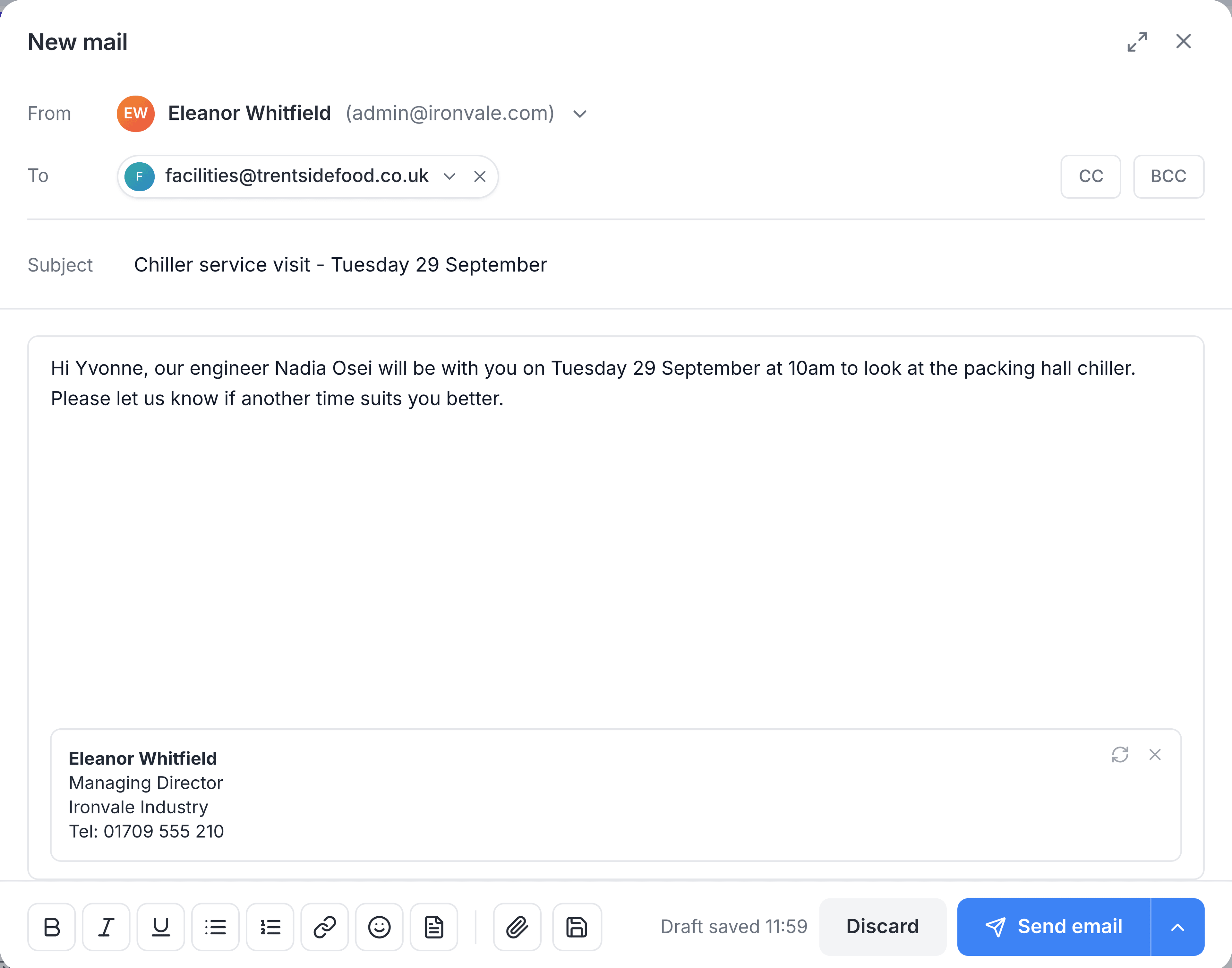
Select Send email.
What happens next
The composer closes and a message appears at the bottom right: Your message is being sent, with an Undo button and a short countdown. When the countdown ends, the email leaves from the address in From, and a copy lands in that mailbox's Sent Items. If you change your mind in time, see Undo a send.
You're done when the countdown message has gone and the email is listed in Sent Items for the address you sent from.
The fields
| Field | What it does |
|---|---|
| FromRequired | Which of your addresses sends it, and so where the answer comes back. Pick a shared inbox when the whole team should see the reply. It lists the connected mailboxes you can see. You can't send from a shared inbox where you're only an Observer. |
| ToRequired | Who receives it. Enter an address, then select Enter, Tab or a comma to add it. You can also paste a list. |
| CC and BCC | Select either button to add that row. People in BCC are hidden from everyone else. |
| SubjectRequired | What the email is about. TeamEmail won't send a new email without one. |
| Message | The body. Enter / in the message to search your saved templates. |
More you can do while writing
- Format text with the buttons along the bottom: bold, italic, underline, bulleted and numbered lists, and links.
- Attach a file with the paperclip, or drag files onto the composer. Documents, spreadsheets, images, PDFs and zip files are all accepted.
- Insert a saved reply with the template button. See Templates.
- Change the signature with the arrows in the signature's corner, or remove it for this email with its cross.
- Send it later from the arrow beside Send email. See Send Later.
Your work is saved as you go
The composer saves a draft a few seconds after you stop typing, and the time shows beside Discard, as Draft saved time. Select the cross at the top right to close the composer and keep the draft: you'll find it under Drafts in My work. Select Discard to throw the email away. For a new email there's no confirmation, so only use it when you're sure.
If something doesn't look right
Nothing sends, and a message says "Please enter a recipient" or "Please enter a subject". Fill in the field it names and send again.
An address you entered didn't turn into a chip. TeamEmail didn't recognise it as an email address, so it won't be sent to. Check for a missing @ or a stray space.
The address you want isn't in From. Only connected mailboxes in inboxes you belong to are listed. Ask an administrator to add you to the shared inbox, or to reconnect the mailbox in Settings > Connections.