
Find a conversation
Track down an email by a word in it, a ticket ID, the sender, or a tag.
Last reviewed
The quickest way to find a conversation is the Search bar at the top of the screen. It looks across every inbox you can see, including the words inside messages.
Search everything
Select Search at the top of the screen.
Enter at least two characters: a word from the email, the subject, the sender's name or address, or a ticket ID such as
SRV-006.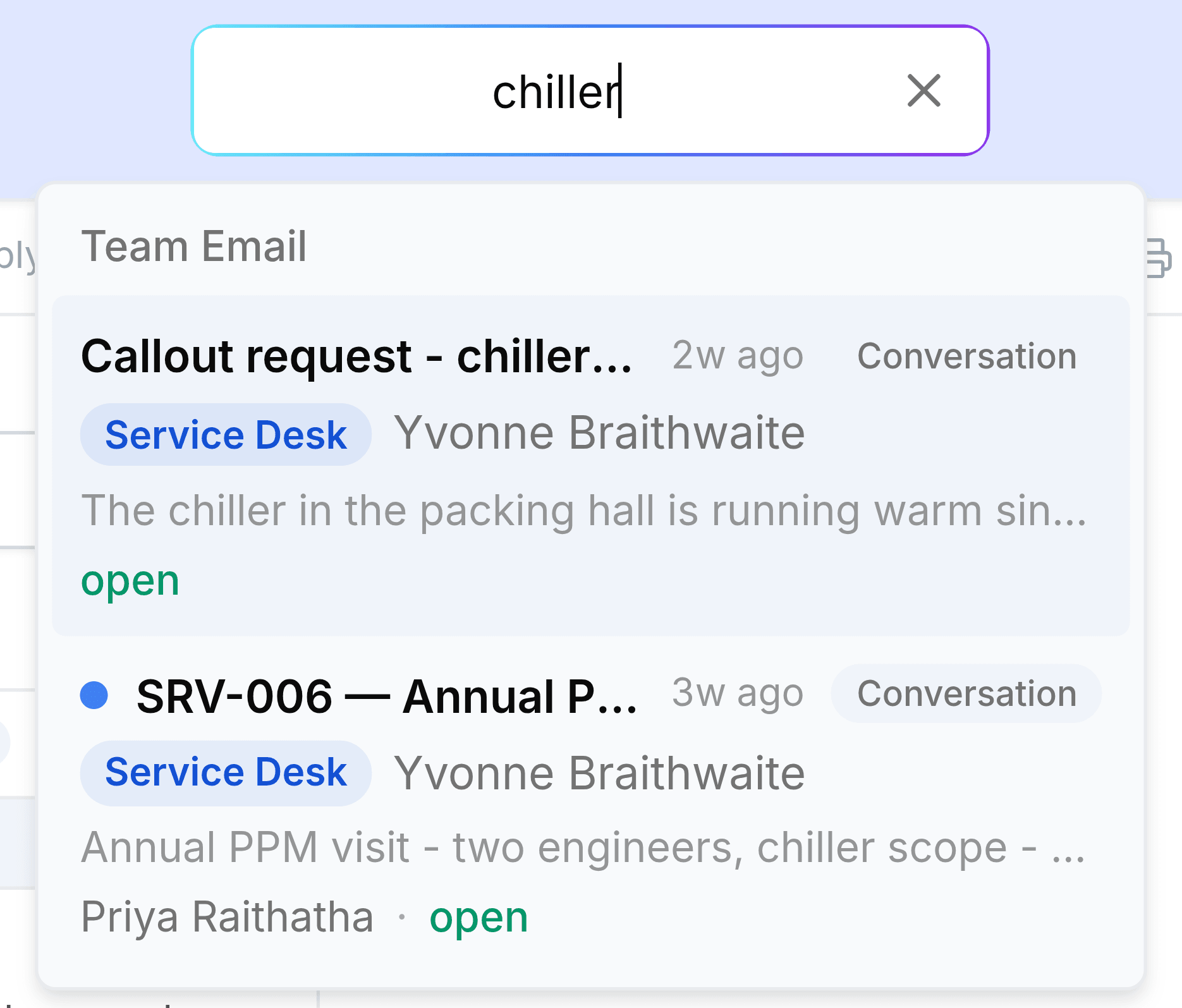
Select the conversation you want. It opens in its inbox.
Each result shows the inbox it belongs to, who it's from, the first line of the message, and who it's assigned to with its status. That's usually enough to pick the right one before you open it.
You're done when the conversation is open in the reading pane.
Search one inbox
Inside a mailbox, a Search emails... box sits above the list. Enter at least three characters to search that mailbox's folders. Matching words are highlighted in the list and in the message. Select any item in the sidebar to clear the search.
Narrow a long list instead
- Filter the list you're looking at with the funnel above it: Unread, Flagged, To me or Has files. Select Clear filter to go back.
- On the Assigned tab of a shared inbox, filter by Assignee or by Tag.
- Select a tag under Tags in the sidebar to list every conversation carrying it.
- Select Unread in the sidebar to see everything you haven't read yet, across your inboxes.
If something doesn't look right
The conversation you want doesn't come up. Check the spelling, or try a different word from the email, the sender's address, or its ticket ID. Search covers the mailboxes you're a member of, plus conversations shared with or assigned to you. If it arrived in an inbox you're not in, ask a member to share it or to add you.
You want to browse archived mail. Archived conversations still turn up in search, and they live in the mailbox's Archive folder.