
Undo a send
Pull an email back in the seconds after you select Send email, before it leaves.
Last reviewed
TeamEmail holds every email for a few seconds after you send it. In that time you can bring it back, unsent, exactly as you wrote it.
Undo it
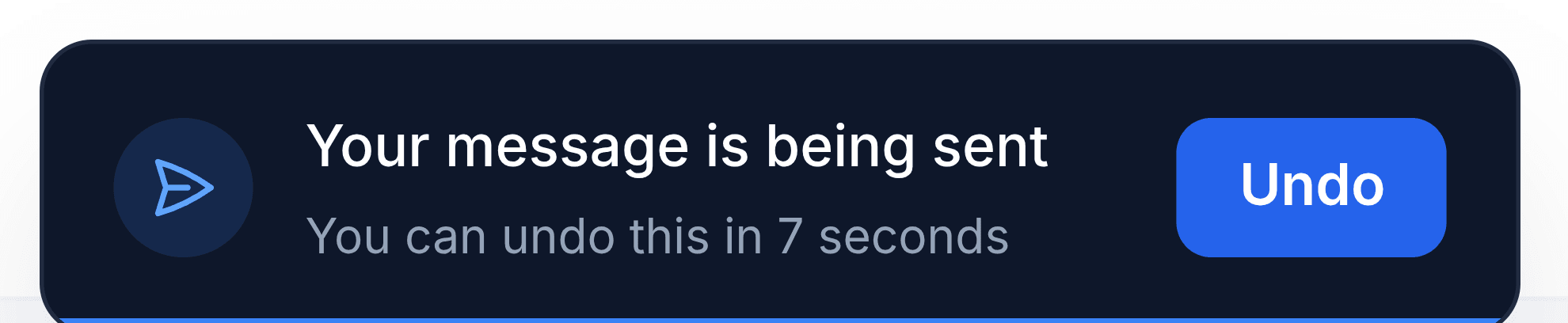
Straight after you select Send email, a message appears at the bottom right: Your message is being sent, counting down. Select Undo before the countdown ends.
A new email reopens in the composer, and a reply reopens in its conversation, with your text and attachments. For a reply, the recipients and From go back to their defaults, so check them before sending again. Fix what you need to and send it again, or discard it.
You're done when the composer is back on screen and the countdown message has gone.
How long you have
Seven seconds, unless you've changed it. Choose Off, 5, 7, 10, 15 or 30 seconds in Undo Send. It's your own setting, so changing it doesn't affect anyone else. With Off, email leaves the moment you select Send email and there's nothing to undo.
Things that end the countdown early
- Sending another email. The first one goes immediately so the second can start its own countdown.
- Moving to another part of SorviAI. The email is sent straight away.
Closing or reloading the browser tab is different: your browser asks you to confirm, and if you leave anyway, the email is not sent.
Once it has gone
After the countdown, the email has been sent and can't be recalled. Send a follow-up if you need to correct it.