
How shared inboxes work
An address the whole team answers from, with the same folders as any other mailbox.
Last reviewed
A shared inbox is an address more than one person answers: sales@, service@, accounts@. Every member sees the same mail, and nobody owns it the way an individual mailbox is owned.

What is inside one
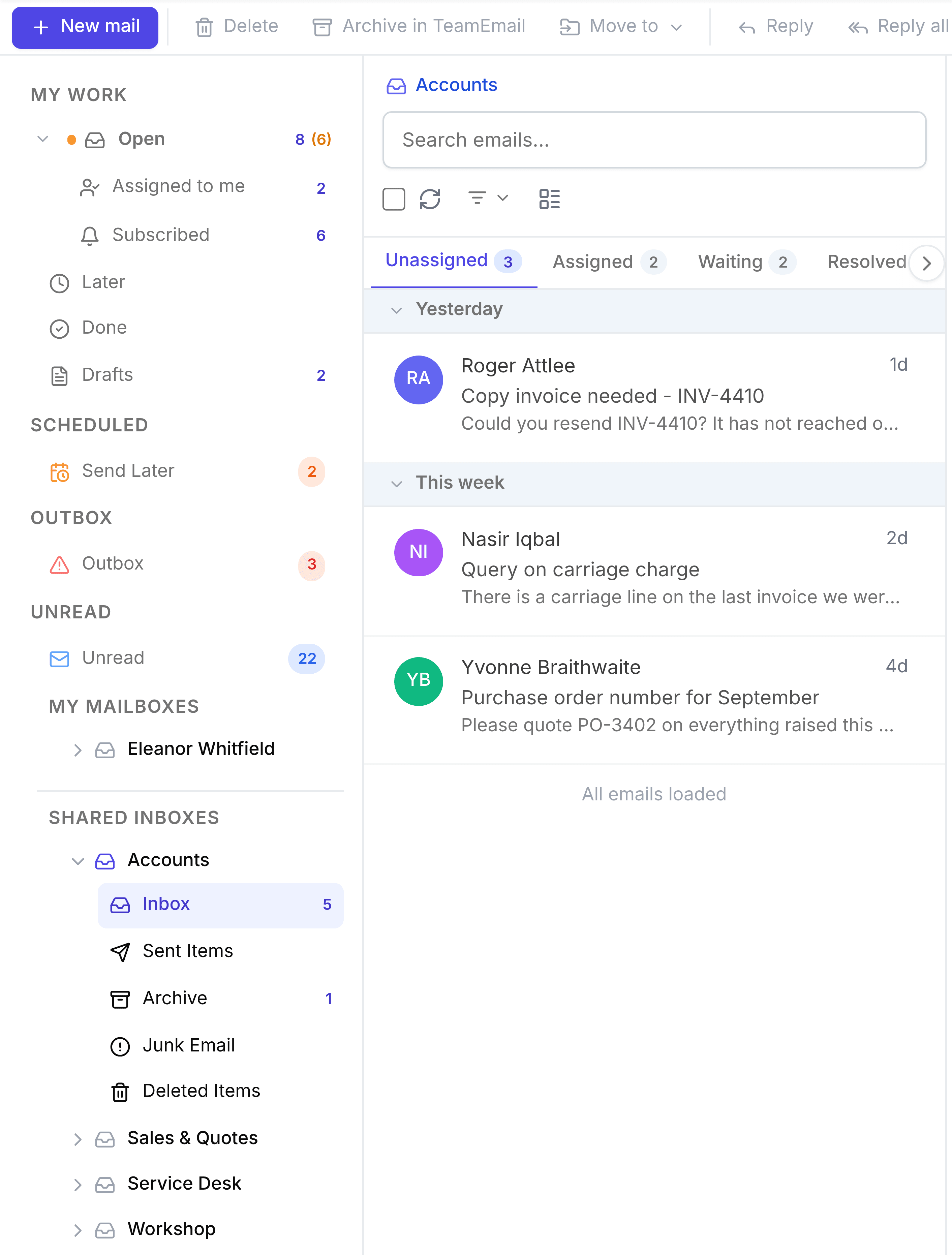
Expanding a shared inbox shows five folders. Inbox, Sent Items and Junk Email mirror the Outlook mailbox; Archive and Deleted Items exist only in TeamEmail and don't change anything in Outlook. Every member is looking at the same contents.
- InboxMail as it arrives, sorted into Unassigned, Assigned, Waiting and Resolved.
- Sent ItemsEverything sent from the address, whichever member sent it.
- ArchiveConversations cleared from view, which return to Open when a new message arrives.
- Junk EmailMail flagged as spam.
- Deleted ItemsMail a member has deleted, until it's restored or removed for good.
Who can see and change one
Membership is what grants access: a shared inbox is invisible to anyone who is not a member of it. Only an administrator can create one or change who belongs to it, from Settings > Inboxes. See Inboxes.
Working in one
- Answer a customer email from start to finishThe whole job, from arriving to closed.
- Assign a conversationGive it one owner.
- Add an internal noteTalk to the team without the customer seeing.
- Change a conversation's statusOpen, Waiting or Done.