
Access TeamEmail
How you get into TeamEmail, and what decides which mail you can see once you are there.
Last reviewed
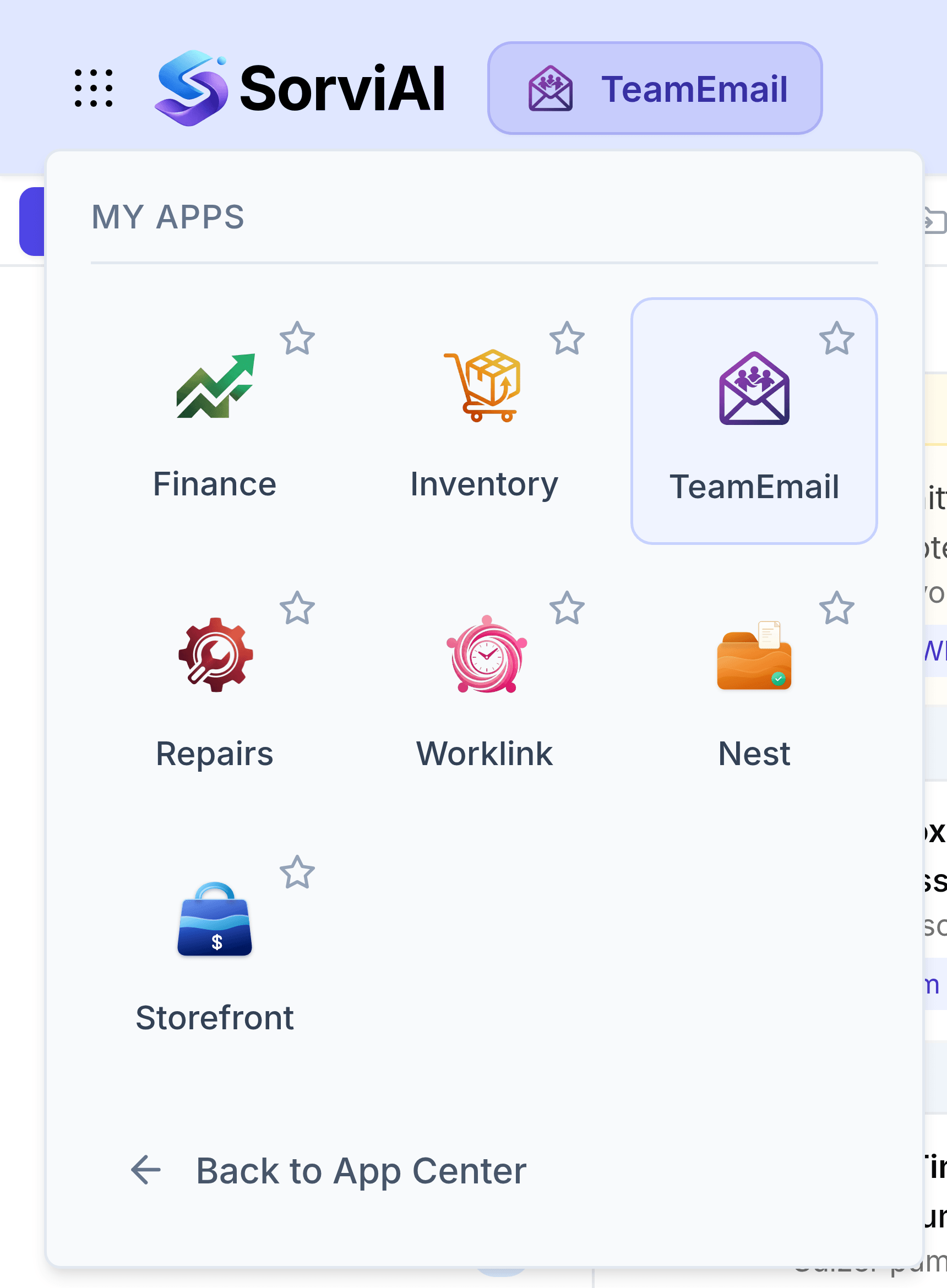
Open TeamEmail from the app switcher at the top left of any SorviAI screen. Whether you see anything once you are in depends on two separate things, and it is worth knowing which is which.
What gets you in
You can use TeamEmail if your administrator has given you access to it, or if you've been added to one of its shared inboxes. Being a member of a shared inbox is enough on its own.
- TeamEmail User
- Works conversations in the inboxes they belong to, and manages their own mailbox, private templates, tags and signatures, and personal settings.
- TeamEmail Admin
- Everything a user can do, plus shared inboxes, teammates, and the team's shared templates, tags and signatures.
What decides the mail you see
Access to the app isn't the same as access to mail. Two things decide what's in your sidebar, and they're set per mailbox, not per person.
- Your own connected mailbox
- Nobody sees it but you. Until you connect one and add it to your individual inbox, there's nothing of yours to show.
- Membership of a shared inbox
- A shared inbox is invisible to anyone who isn't a member. Being an administrator doesn't put you in one; being added does.
Within a shared inbox, a member's role decides what they can do there: an Observer can read but not send. See Inboxes.
If something is missing
No mailbox connected yet. TeamEmail shows Connect Microsoft Outlook with a Go to Settings button instead of your mail. See Connections.
A shared inbox you expected isn't there because you're not a member of it. Ask a TeamEmail administrator to add you in Settings > Inboxes.
A conversation someone mentioned isn't visible because it's in an inbox you're not in. They can share that one conversation with you by mentioning you in a note.