
Signatures
Create the sign-off added under every email, choose which mailboxes use it, and set your default.
Last reviewed
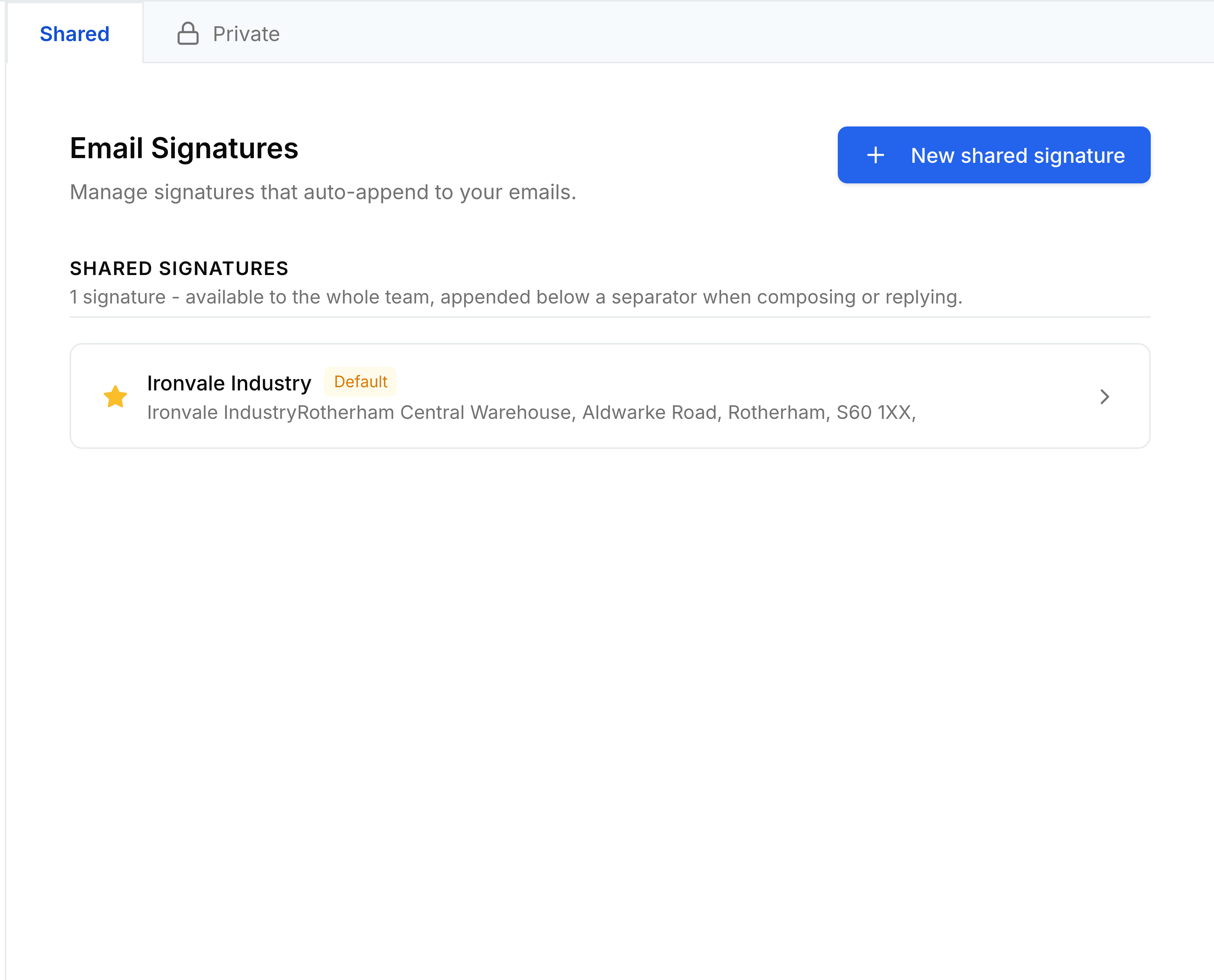
Settings > Signatures (the screen is headed Email Signatures) holds the sign-offs added under new emails and replies. Shared signatures are for the whole team and set up by an administrator. Private ones are yours.
Create a signature
Go to Settings > Signatures, and select New shared signature or New private signature.
Enter a Name to find it by, such as
Service desk.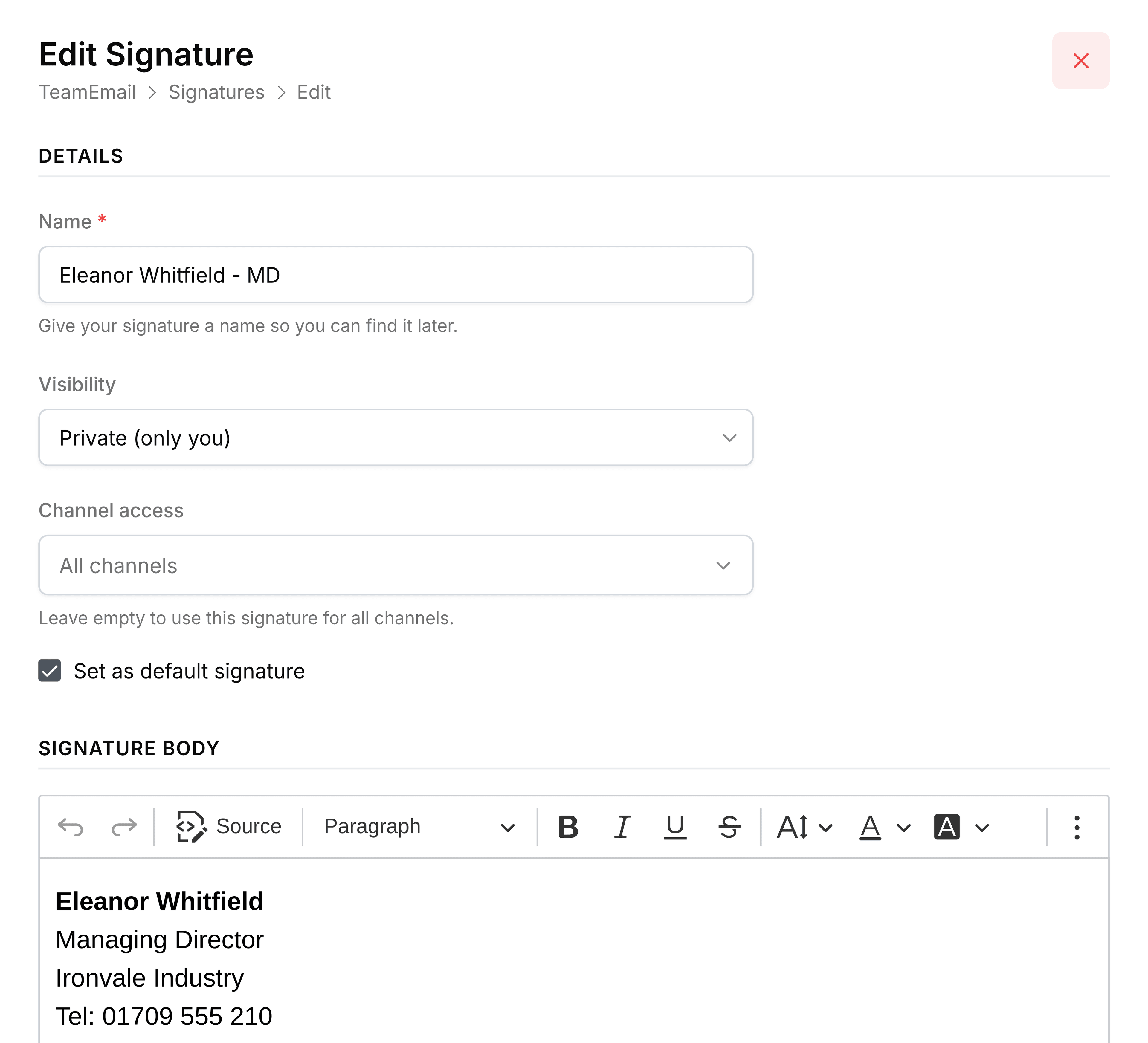
Under Channel access, choose the mailboxes it's for. Leave it empty to make it available on every mailbox: it's then only added automatically if it's your default.
Tick Set as default signature if it should be your fallback wherever no other signature applies. On a shared signature this sets the default for the whole team.
Write the signature under Signature Body, then select Create.
A message confirms Signature created. From now on it's added below your text when you write from one of its mailboxes, or everywhere if it's your default.
You're done when the signature is on the list, and it appears under a new email from one of its mailboxes.
Which signature is used
When you start an email, TeamEmail picks the first signature set for the address in From. If none is set for that address, it uses your default. If you have no default, the email has no signature.

Change it for a single email with the arrows in the signature's corner, or remove it with its cross. Neither changes the saved signature.
Change or delete a signature
Select a signature to edit it, then select Update. To delete one, point to its row on the list and select the bin.