
Archive a conversation
Clear a finished conversation out of the team's lists without deleting it, and bring it back if you need it.
Last reviewed
Archiving takes a conversation out of every working list and tab and parks it in the mailbox's Archive folder. Nothing is deleted, and it changes nothing in Outlook: archiving is purely about what the team sees in TeamEmail.
Archive when a conversation is finished and you want it gone from view. If it might need anyone again soon, mark it Done instead: it stays on the Resolved tab where it's easy to find.
Archive it
Open the conversation.
In the toolbar at the top of the page, select Archive in TeamEmail.
A message confirms Email archived, and the conversation closes and leaves the list you were in.
There are two shortcuts to the same thing. Point to a conversation in a mailbox list and select the archive button at the right of its row. Or, on a conversation marked Done, select Archive at the top, or Archive in inbox name on its banner.
You're done when the conversation is listed in the mailbox's Archive folder and not on any tab of the Inbox.
It comes back on its own when a new message arrives
An archived conversation isn't closed to new mail. The moment the customer writes again, it returns to Open and reappears in the Inbox for whoever is watching. That makes archiving safe even when you're not certain a job is over.
Bring it back yourself
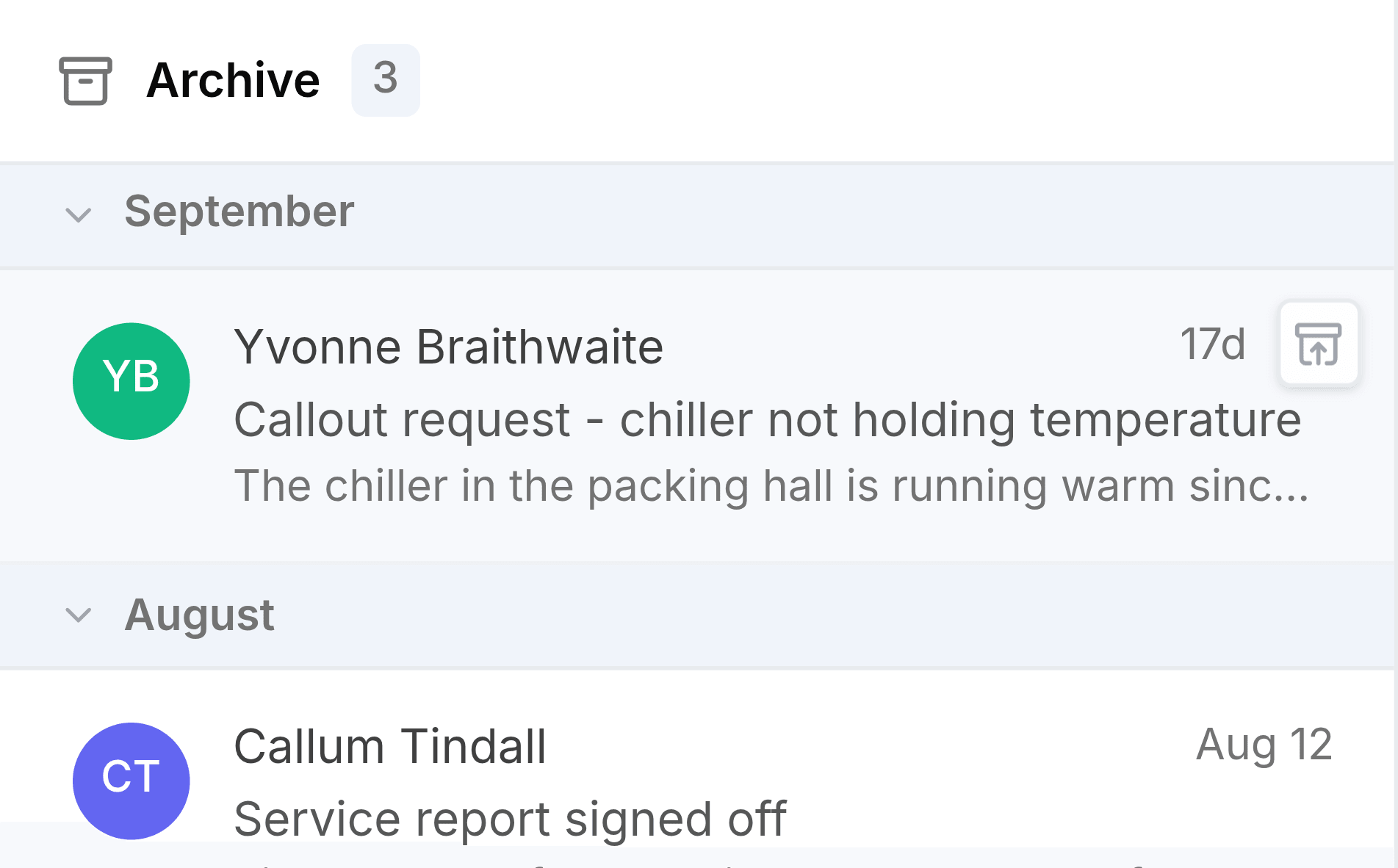
Expand the mailbox in the sidebar and select Archive. Point to the conversation and select the button at the right of its row, Unarchive: returns this thread to Open. Or open it and select Unarchive in the toolbar. It goes back to the Inbox as Open.
Archive, Done or delete?
- Done
- Finished, but kept on the Resolved tab in case it's needed soon.
- Archive
- Finished and cleared from every tab. It comes back the moment a new message arrives.
- Delete
- Unwanted mail, such as a duplicate or an automatic notice. It goes to Deleted Items.