
Tags
Create the labels your team sorts conversations by, put them on conversations, and find every conversation that carries one.
Last reviewed
Tags are coloured labels that travel with a conversation, such as Urgent or Warranty. They show on the conversation's row in every list, and each tag gets its own list in the sidebar, so "every warranty claim" is a single selection away.

Settings > Tags lists every tag, on a Shared tab for the team and a Private tab for tags only you can use. The Conversations column shows how many conversations carry each one.
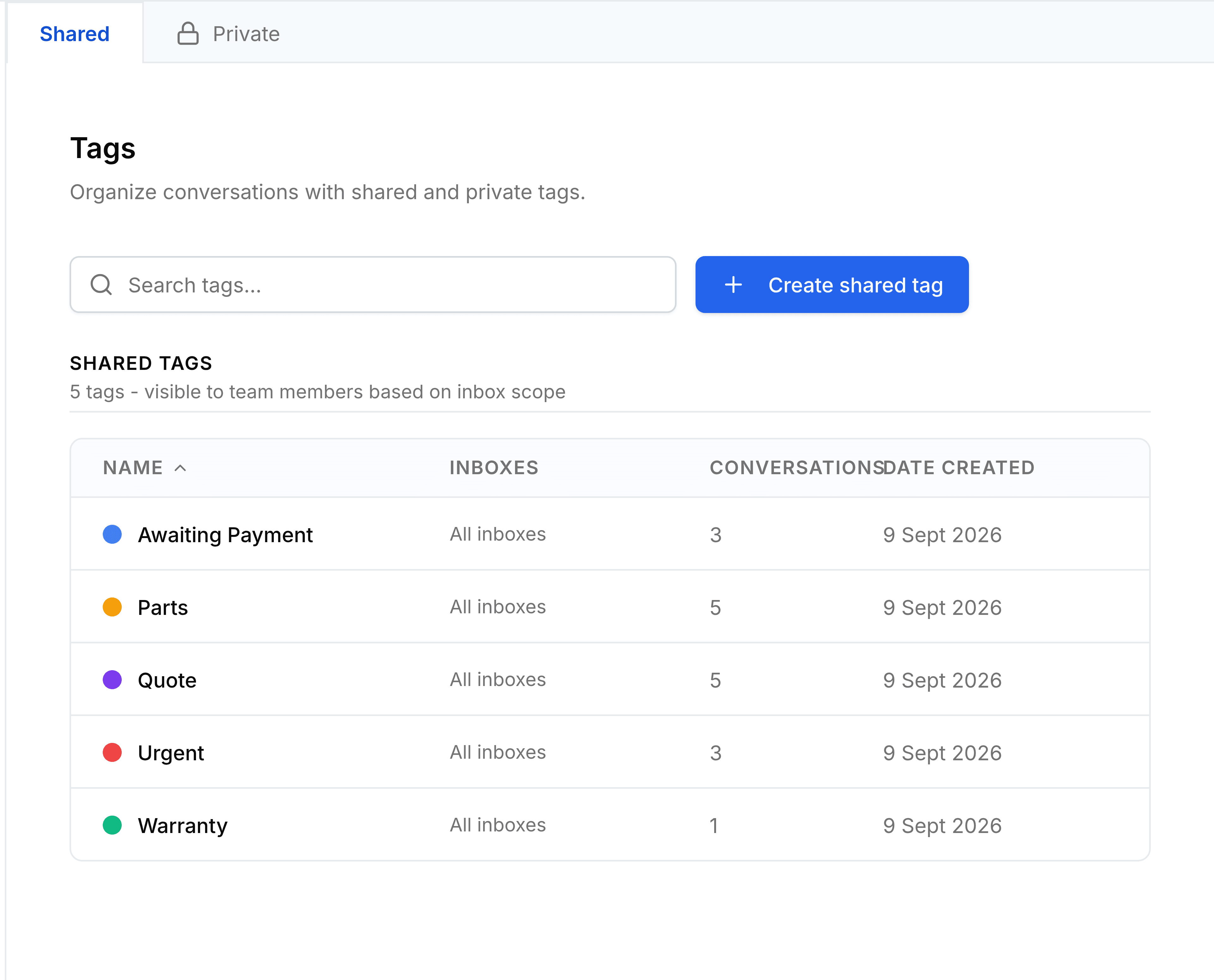
Create a tag
Go to Settings > Tags, select the Shared or Private tab, then select Create shared tag or Create private tag.
Enter a Name of up to 50 characters, such as
UrgentorWarranty, and optionally a Description.
Under Color, pick one of the colours. Choose distinct colours for tags that are often used together.
Under Access, leave Show in sidebar on to give the tag its own list in everyone's sidebar. For a shared tag, leave Make available for any inbox on, or turn it off and tick the inboxes it's for.
Select Create.
A message confirms the tag was created. It's now offered under Tag in every conversation it's available to.
You're done when the tag is on the list, and it appears when you select Tag in a conversation.
Tag a conversation
Open the conversation, and under its title select Tag.

Select a tag. A tick appears beside it, and the list stays open so you can add another.
Select anywhere outside the list to close it.

The tag appears under the title, and a line in the timeline records who added it. Everyone who can see the conversation sees the tag.
You're done when the tag's coloured chip shows under the conversation's title.
No suitable tag yet? In the same list, select Create new tag. Enter a name, pick a colour and choose Private (only you) or Shared (the team), then select Create & apply. Only administrators can create shared tags. Manage tags, at the foot of the list, brings you back to this Settings screen.
Remove a tag from a conversation
Select the cross on the tag's chip, or select Tag and select the ticked tag again. TeamEmail asks you to confirm, because removing a tag removes it for everyone. Select Remove tag.
See every conversation with a tag
Tags have their own section at the bottom of the sidebar, under Tags, split into Shared and Private. Select a tag to list every conversation that carries it, across all the inboxes you can see.

Change or delete a tag
Select a tag in Settings > Tags to open it, change its name, colour or access, and select Save. Renaming or recolouring a tag updates it on every conversation straight away.
To delete a tag, open it and select Delete. This removes it from every conversation that carries it, and it can't be undone.
If something doesn't look right
A tag your colleague uses isn't in your list. It's either their private tag, or a shared tag limited to inboxes you're not in.
A tag doesn't appear in the sidebar. Its Show in sidebar switch may be off, and each group under Tags starts collapsed. Select Shared or Private under Tags to expand it.