
Add an internal note
Talk to your team inside a conversation, and @mention the person who needs to see it. The customer never does.
Last reviewed
A note is a message to your team, posted inside a conversation. Use one to ask a colleague for help, hand over context, or record a decision, all next to the email it's about. Notes are never sent to the customer.
Post a note
Select the box at the bottom of the conversation that reads Note to the team… @ to mention.
Write your note. To bring someone in, enter
@and the start of their name, then select them from the Teammates list.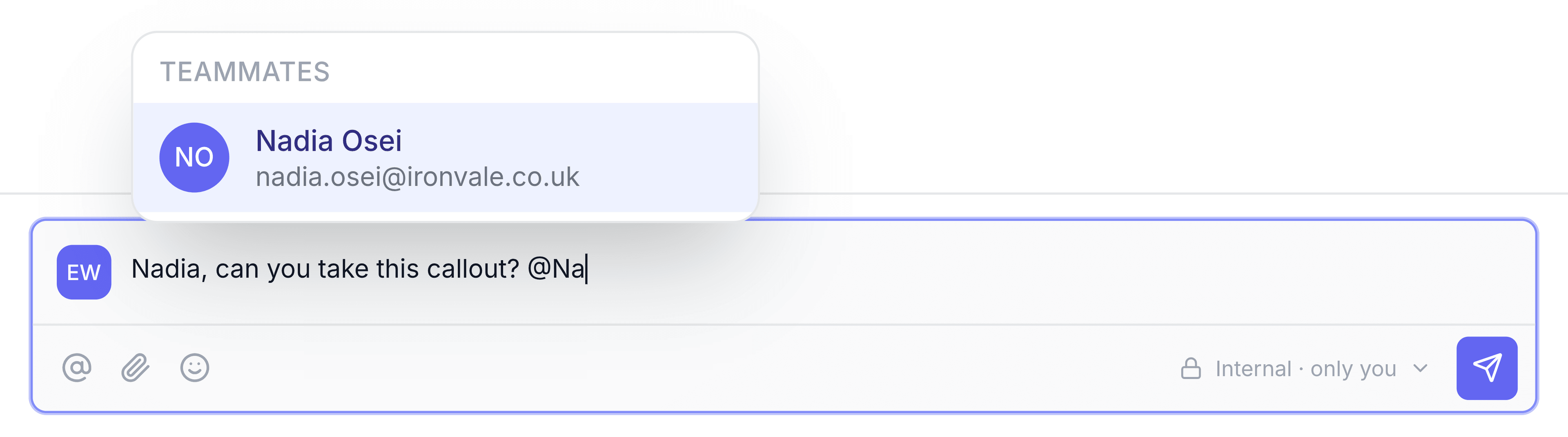
Select Enter, or the send arrow at the right, to post it. For a new line, use Shift+Enter.
The note appears in the conversation's timeline with your name and the time. Everyone you mentioned gets a notification, and the conversation is added to their lists, so they don't need to be watching the inbox to see it.
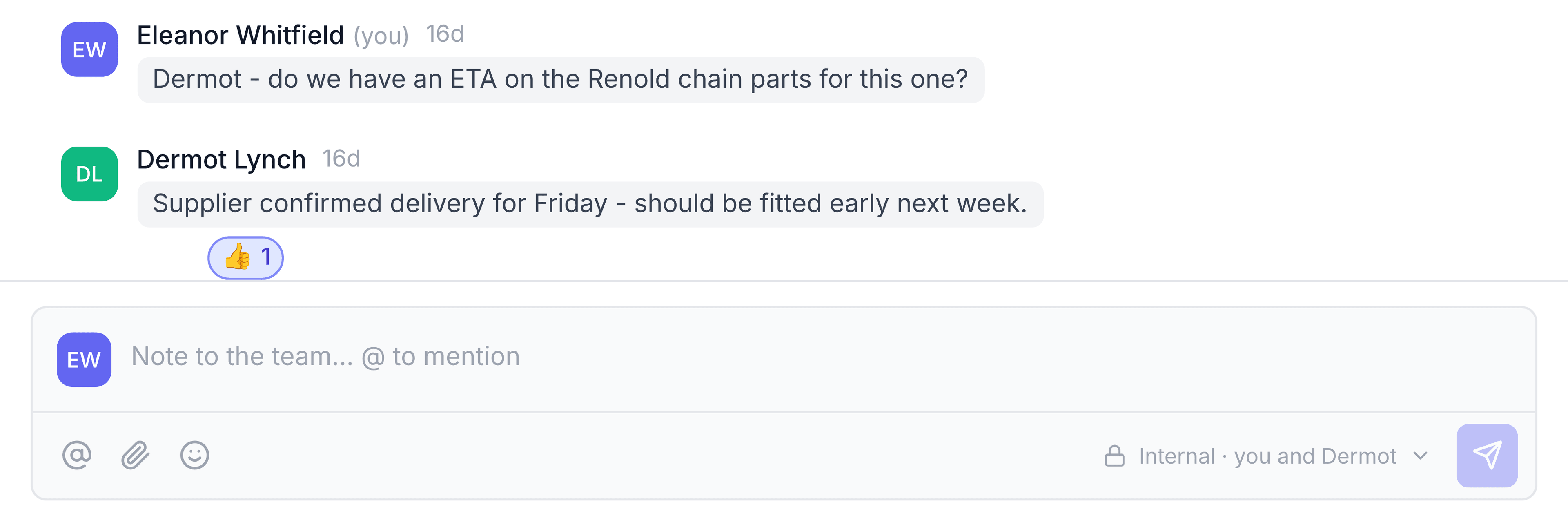
You're done when your note is in the timeline, beneath the message it's about.
Who can see a note
Everyone with access to the conversation can read its notes: members of the shared inbox, and anyone it has been shared with. Nobody outside your team ever sees them.
The label in the corner of the note box, such as Internal · you and Dermot, lists who is following the conversation. Select it to see everyone on that list.
Add more to a note
- Attach a file with the paperclip, or drag one onto the note box. Pasted images are attached too.
- Add an emoji with the smiley button.
- Mention with the @ button, which does the same as entering
@.
Respond to a note
Point to a note to see its buttons:
- React adds an emoji. You can leave one reaction per note: choosing another replaces it, and selecting the same one again takes it back.
- Reply answers that note directly. Its author gets a notification.
- Edit note and Delete note appear on your own notes only. An edited note shows (edited) beside its time when you point to it. Deleting asks you to confirm, and teammates see that a note was deleted.
Mistakes worth avoiding
Putting internal detail in a reply instead. If the customer shouldn't read it, it belongs in a note. The note box is always at the bottom of the conversation; reply boxes open under a message and say Reply.
Mentioning someone outside the inbox by accident. TeamEmail asks before sharing (see below). Read the prompt before you accept it.
If something doesn't look right
You're asked to share the conversation. The person you mentioned isn't a member of this inbox. Select Share to give them this one conversation, including its earlier and future messages, and nothing else in the mailbox. Select Cancel to go back: the note isn't posted, and your text stays in the box.
The person you want isn't in the Teammates list. Only people who use TeamEmail are listed. Ask a TeamEmail administrator to give them access.