
Change a conversation's status
Mark a conversation Open, Waiting or Done so the team can see at a glance where it stands.
Last reviewed
Every conversation has a status that tells the team whose move it is. Changing it moves the conversation to the matching tab of the shared inbox, so the Unassigned and Assigned tabs only ever hold work that's still to do.
Change it
At the top right of the conversation, select the status button. It shows the current status, usually Open.
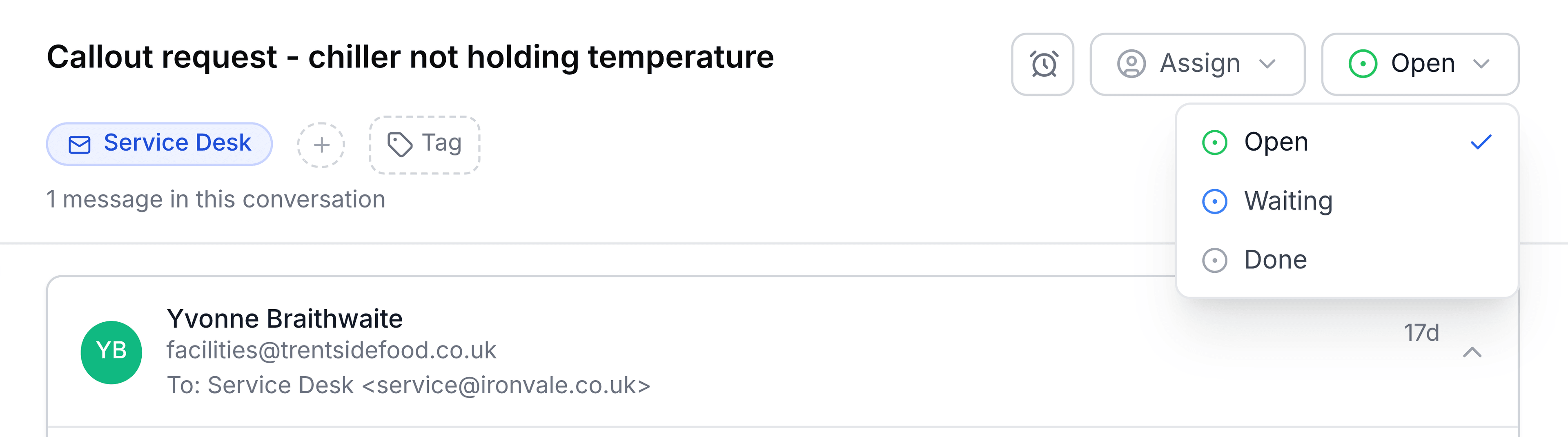
Select Open, Waiting or Done.
The button shows the new status straight away, and the tab counts at the top of the inbox change as the conversation moves.
Which to choose
- Open
- Your team has work to do on it. It sits on the Unassigned or Assigned tab, depending on whether someone owns it.
- Waiting
- The next move is someone else's: the customer, a supplier, an engineer's report. It moves to the Waiting tab. If you follow the conversation, it also moves to Later in your My work. Unlike a snooze, Waiting has no end time.
- Done
- Nothing more is needed. It moves to the Resolved tab, and a banner reads This conversation is resolved.
Done and Resolved mean the same thing. The status menu says Done; the inbox tab and the send menu say Resolved.
You're done when the button shows the status you chose and the conversation is on the matching tab.
It changes back on its own when the customer writes
A new incoming email (anything not sent from this inbox's own address) brings a Waiting or Done conversation straight back to Open, and it lands on the Unassigned or Assigned tab again. You don't need to keep an eye on Waiting or Resolved for replies.
Assigning a conversation also reopens it, so a new owner always receives it as work to do.
Set it as you reply
When you reply, the arrow beside Send email offers Send as Open, Waiting or Resolved. Selecting one sends your reply straight away and changes the status in one step. See Reply or forward.
After Done: archive it if you like
A Done conversation shows an Archive button, and its banner offers Archive in inbox name. Archiving takes it off the Resolved tab as well. It's optional. See Archive a conversation.