
Undo Send
Choose how long you have to pull an email back after you send it.
Last reviewed
TeamEmail holds each email for a few seconds after you select Send email, so you can take it back. This setting decides how long. It's yours alone: changing it doesn't affect anyone else on the team.
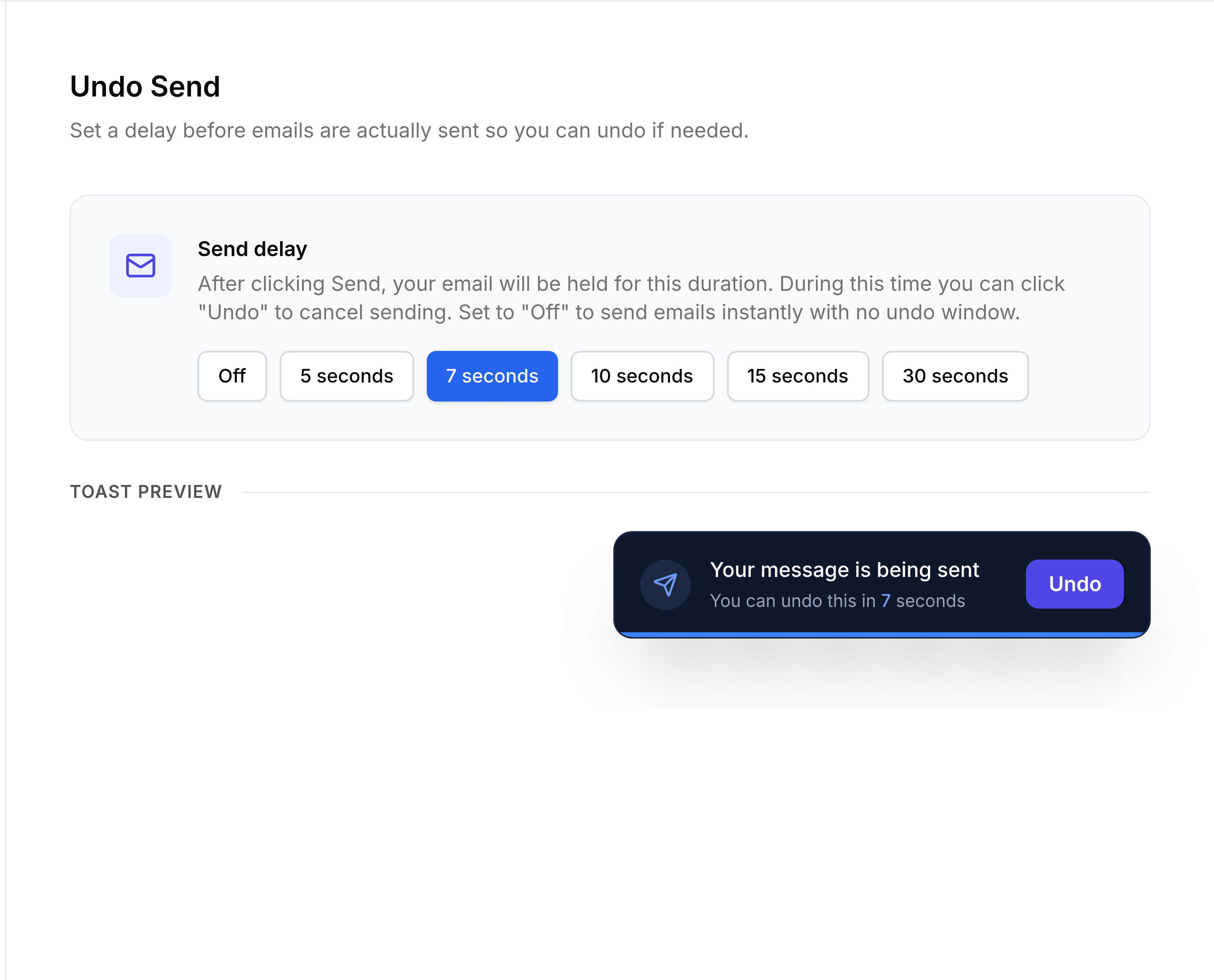
Go to Settings > Undo Send.
Under Send delay, choose Off, 5 seconds, 7 seconds, 10 seconds, 15 seconds or 30 seconds.
Select Save.
A message confirms the new delay. It applies to the next email you send.
You're done when the delay you chose is selected, and the preview shows the right number of seconds.
A longer delay gives you more time to spot a mistake, but every email you send waits that long before it goes. Seven seconds, the starting setting, suits most people.