
Reply or forward
Answer a message from inside its conversation, choose who it goes to, and decide what happens to the conversation once it's sent.
Last reviewed
Reply, Reply all and Forward all open inside the conversation, so the rest of the thread stays in view while you write.
Reply
Under the message you're answering, select Reply to answer the sender, or Reply all to include everyone on the thread. Forward sends the message on to someone new. The same three buttons sit in the toolbar at the top of the page; from there, the reply opens at the top of the conversation.
Check From. A reply starts on the address the conversation belongs to, so a reply in a shared inbox goes out from the shared address. Leave it that way unless you have a reason not to.
Check To. For a reply it's filled in for you. For a forward it's empty: enter who it's for.
Write your reply.
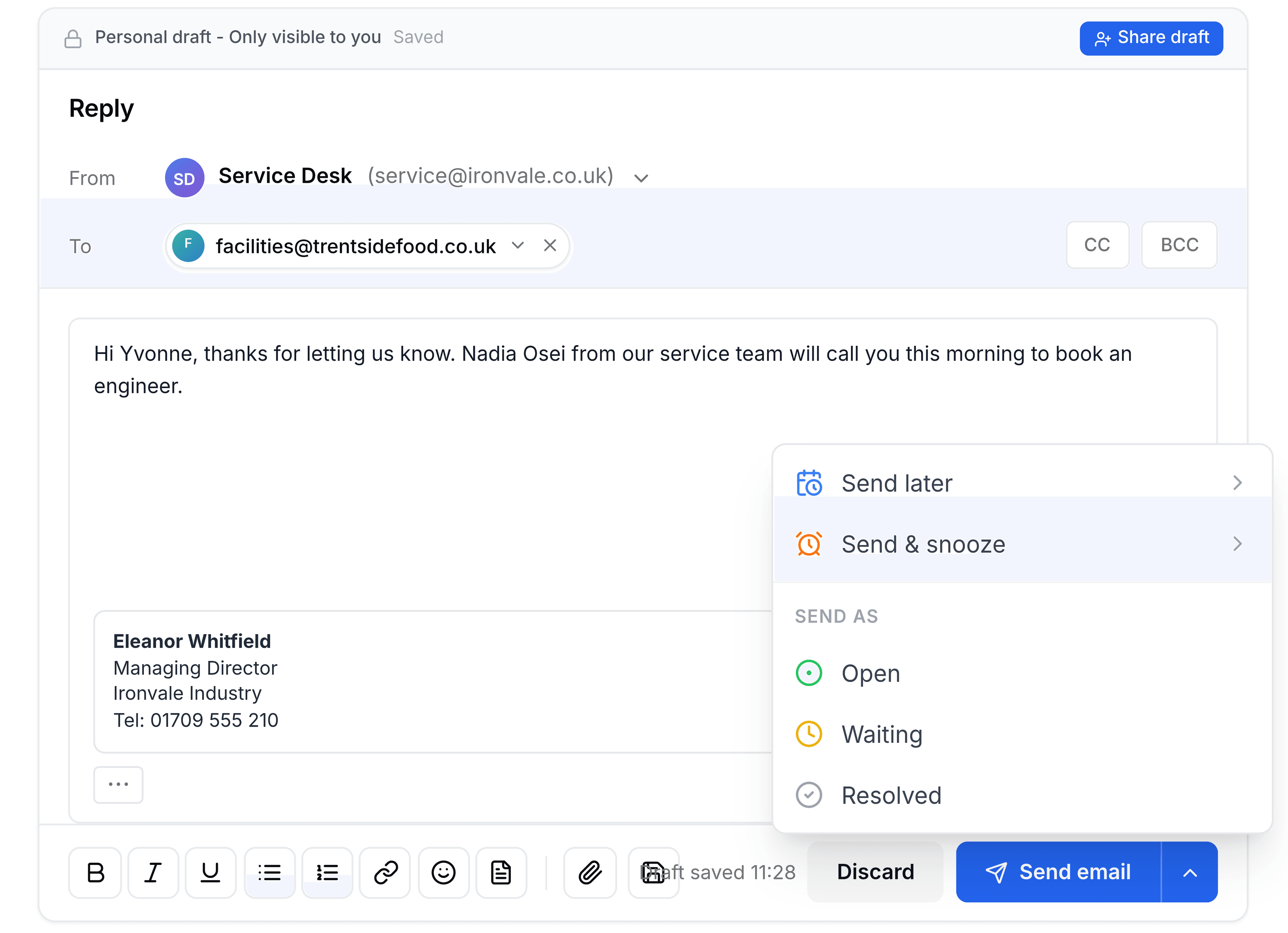
Select Send email. Or select the arrow beside it and choose an option under Send as, or Send & snooze: the reply is sent as soon as you choose (see below).
A countdown with an Undo button appears at the bottom right. When it ends, the reply goes out and joins the conversation's timeline.
You're done when your reply appears in the conversation, beneath the message you answered.
Who's included
- Reply goes to the person who sent the message you're answering (or the address they asked replies to go to), plus anyone else it was addressed to.
- Reply all also copies in, under CC, everyone else who has been on the thread.
- Forward starts with nobody in To, and carries the original message and its attachments.
Your own addresses are always left out, so you never email yourself. Select CC or BCC to add anyone else.
Decide what happens after you send
The arrow beside Send email sends the reply and deals with the conversation in one go. Choosing any of these sends straight away:
- Send as: Open
- Your team still has work to do on it.
- Send as: Waiting
- The next move is the customer's. It moves to the inbox's Waiting tab until they answer.
- Send as: Resolved
- This reply finishes the job. The conversation is marked done.
- Send & snooze
- Send now, and take the conversation out of your list until a time you choose.
- Send later
- Hold the reply and send it at a time you choose.
The status change is applied once the reply has actually gone, after the undo countdown. If the customer answers, the conversation comes back to Open whatever you chose.
The earlier message is tucked away
The message you're replying to is quoted underneath, hidden behind a ··· button so it doesn't clutter your writing. Select it to show the quoted text, where you can edit or remove it.
Save it for later, or work on it together
A reply saves itself as a draft while you write. The bar above it reads Personal draft - Only visible to you. To let a teammate finish it, select Share draft. In a shared inbox this shares it with the team straight away.
Only one person can edit a shared draft at a time. Anyone else sees who's editing it, and a Take over button.
To throw a reply away, select Discard. If it has already been saved, you're asked Delete this draft?. Select Delete draft to confirm.
If something doesn't look right
Reply is greyed out in the toolbar. A conversation is ticked in the list, or none is open. Clear the ticks, then open the one you want to answer.
The reply is going from the wrong address. Select the address beside From and choose the right one before you send.