
Snooze Presets
Add your own shortcuts for snoozing, such as After lunch or End of week, and edit the ones you're given.
Last reviewed
Snooze presets are the times listed when you snooze a conversation. They're personal: yours don't change anyone else's, so set them to match how you work.
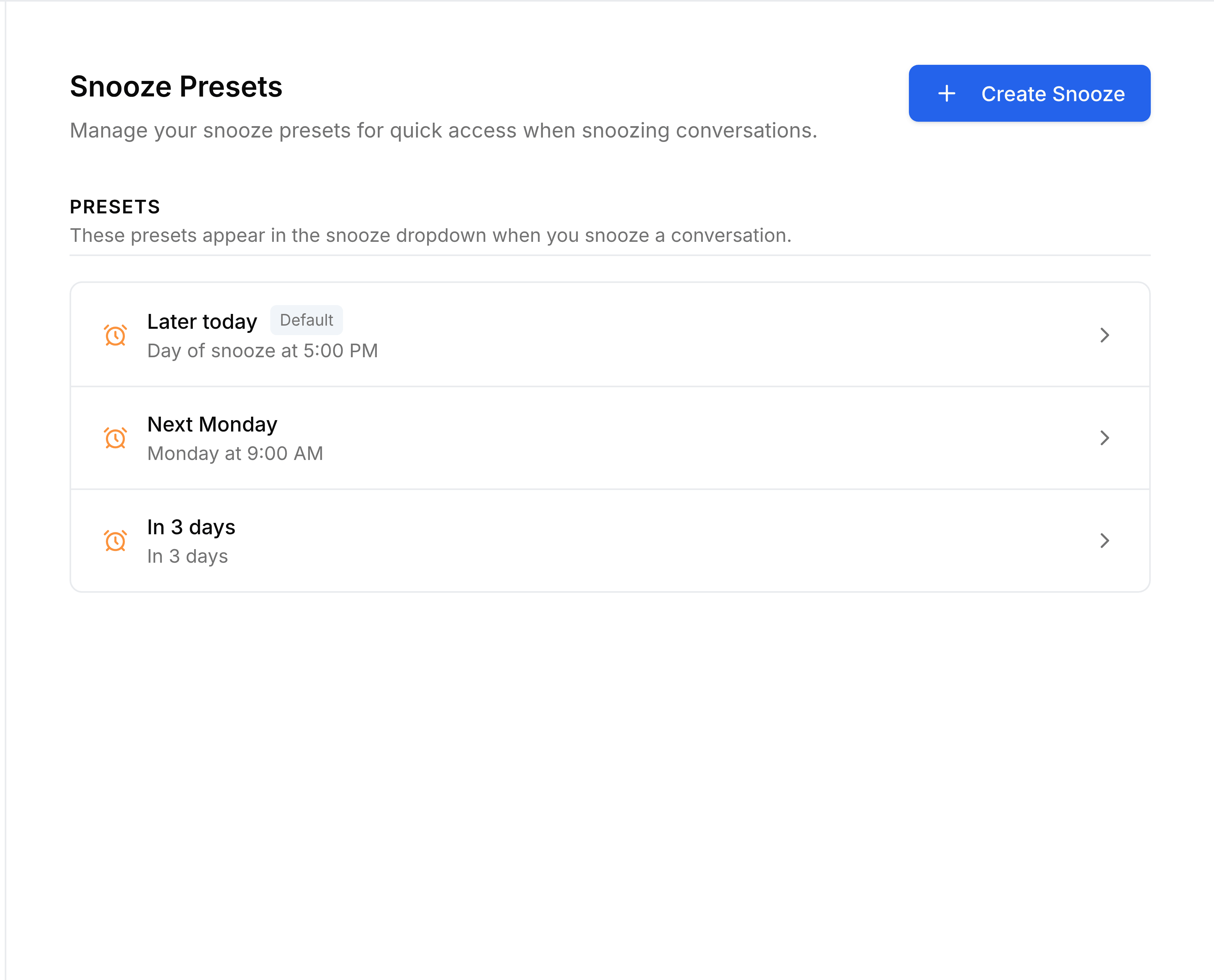
Add a preset
Go to Settings > Snooze Presets and select Create Snooze.
Enter a Name that says when it brings things back, such as
After lunch.Under Type, choose Reopens on a day and time for a fixed moment, then pick the Day and Time. Or choose Reopens after an amount of time, then set the Amount and Unit, such as
3hours.Select Create.
The preset appears in the list, and in the Snooze panel with the exact date and time it works out to.
You're done when your new preset is listed in the Snooze panel of a conversation.
Examples
- After lunch
- Reopens on a day and time: Day of snooze, 2:00 PM.
- End of week
- Reopens on a day and time: Friday, 4:00 PM.
- In 3 hours
- Reopens after an amount of time: 3 Hours.
Change or delete a preset
Select a preset to edit it, then select Update. Point to a row and select the bin to delete it. The presets marked Default can be edited but not deleted.