
Snooze a conversation/Later
Put a conversation out of sight until the time it needs you again, then find it under Later.
Last reviewed
Snooze a conversation when you can't act on it yet: you're waiting for a part to arrive, a colleague is back on Monday, or the customer asked you to call after lunch. It leaves your working list now and comes back on its own at the time you choose.
Snooze it
At the top right of the conversation, select the alarm-clock button, to the left of Assign. The Snooze panel opens, listing your presets with the exact date and time each one works out to.
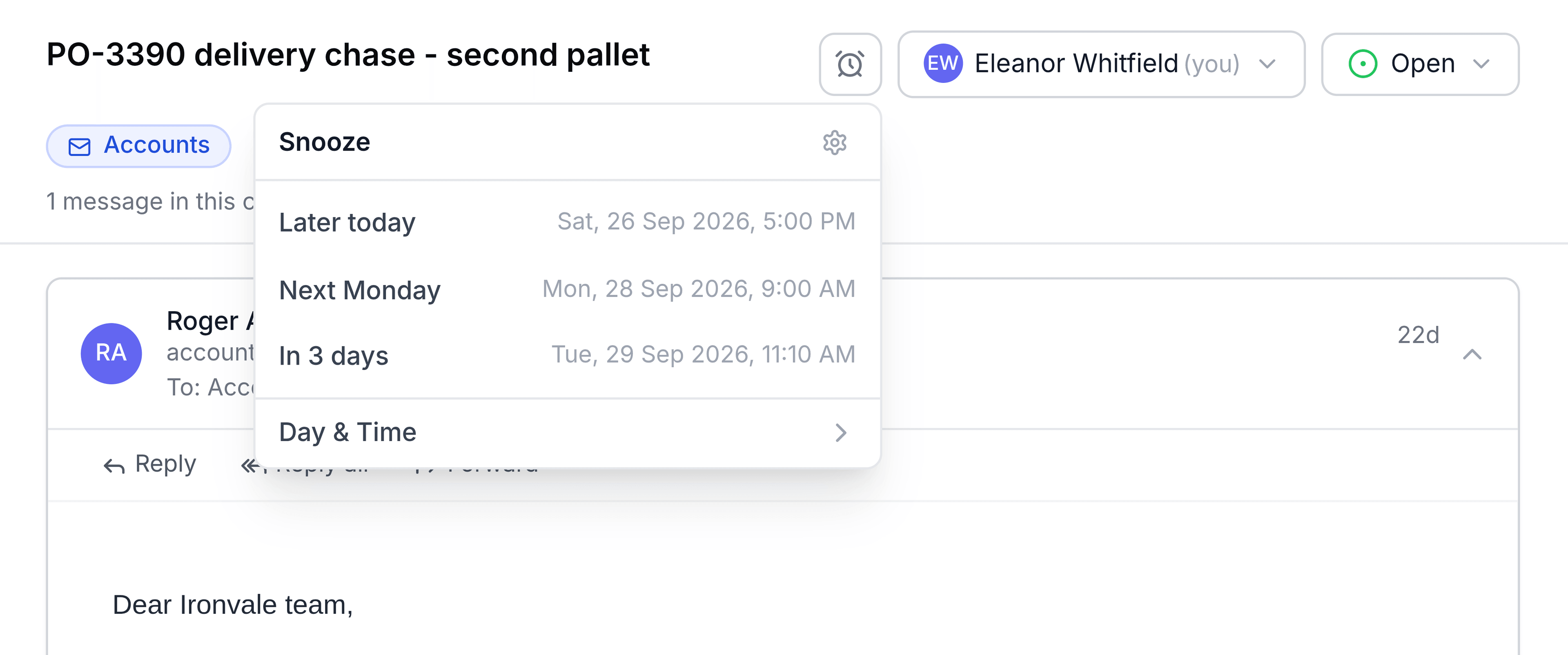
Select a preset to snooze straight away. There's no separate confirm step.
If none of the presets fits, select Day & Time instead. Pick a day on the calendar, or enter a Date such as
31/3/2026, and choose a Time, such as2:30 pm. The line underneath tells you how long it will be away. Select Snooze.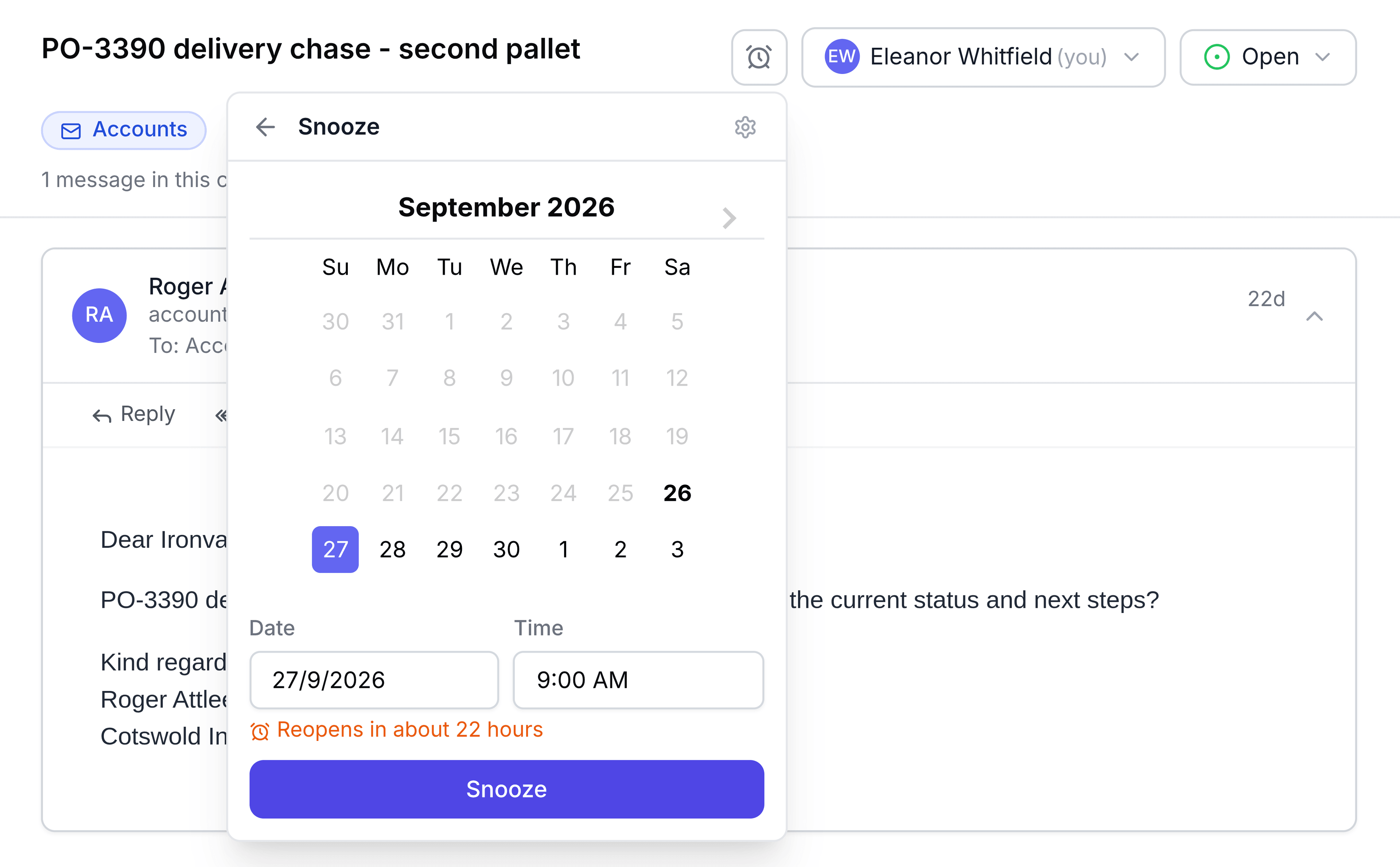
Day & Time opens on tomorrow at 9:00 AM, and it won't let you pick a time that has already passed.
What happens next
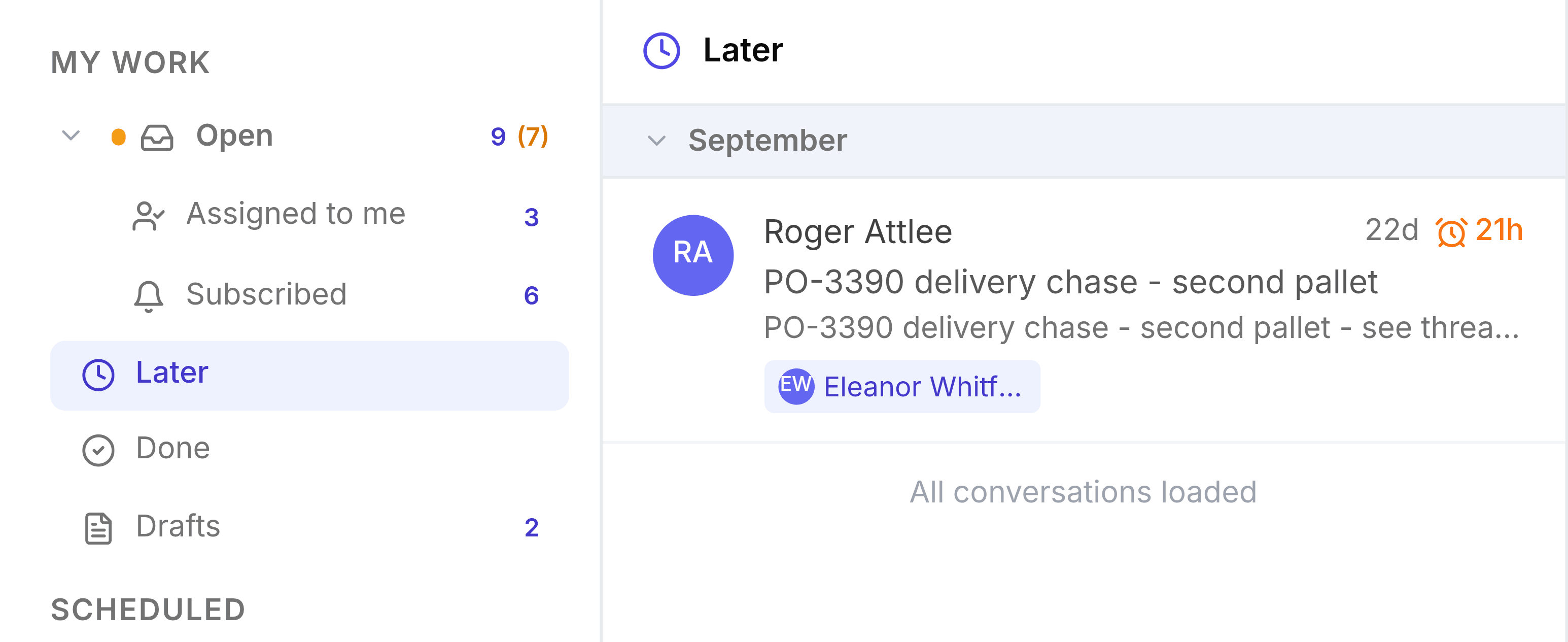
The conversation leaves Open and Assigned to me straight away, and the counts beside them drop by one. If it's assigned to you or you follow it, it's now in Later, where an alarm-clock chip on the row shows how long it has left. Point to the chip to see the exact time it comes back.
When the time comes, it moves back into Open by itself. You get a notification that the snoozed conversation has reopened, so you don't have to remember to look.
It comes back early if the customer replies before then. A new incoming email brings a snoozed conversation back to Open, so snoozing doesn't hide a customer's reply from you.
You're done when the conversation is listed under Later with a time chip, and it's gone from Open.
Snoozing in a shared inbox affects the whole team
Where you snooze from matters:
- From My work (Open, Assigned to me or Subscribed), the snooze is yours alone. It moves out of your list, and nobody else's view changes.
- From a shared inbox's Inbox, TeamEmail asks you to confirm with a Snooze in inbox name message. Confirm, and the conversation moves to that inbox's Waiting tab for every member until the snooze ends.
- From anywhere else, such as your own mailbox, a tag or Unread, the snooze also applies to everyone, without asking first.
Snooze a shared conversation from the inbox when the whole team is waiting, for example on a supplier. Snooze it from My work when only you need a reminder.
Change or cancel a snooze
Open the conversation from Later and select the alarm-clock button again, which is now orange. Pick a new date and time and select Save, or select Unsnooze to put it back in Open now.
If something doesn't look right
A preset is missing from the panel. Presets whose time has already passed are hidden. "Later today" set for 5:00 PM disappears after 5:00 PM. Use Day & Time instead.
It came back before the time you set. The customer, or someone else outside the team, replied. That's deliberate: a snooze doesn't hide new mail.
You want different presets. Presets are personal. Select the gear at the top of the Snooze panel to go to Snooze Presets in Settings, where you can add your own, such as "After lunch".