
Drafts
Every email you've started and not sent, from every mailbox, in one list, and how to finish, share or discard one.
Last reviewed
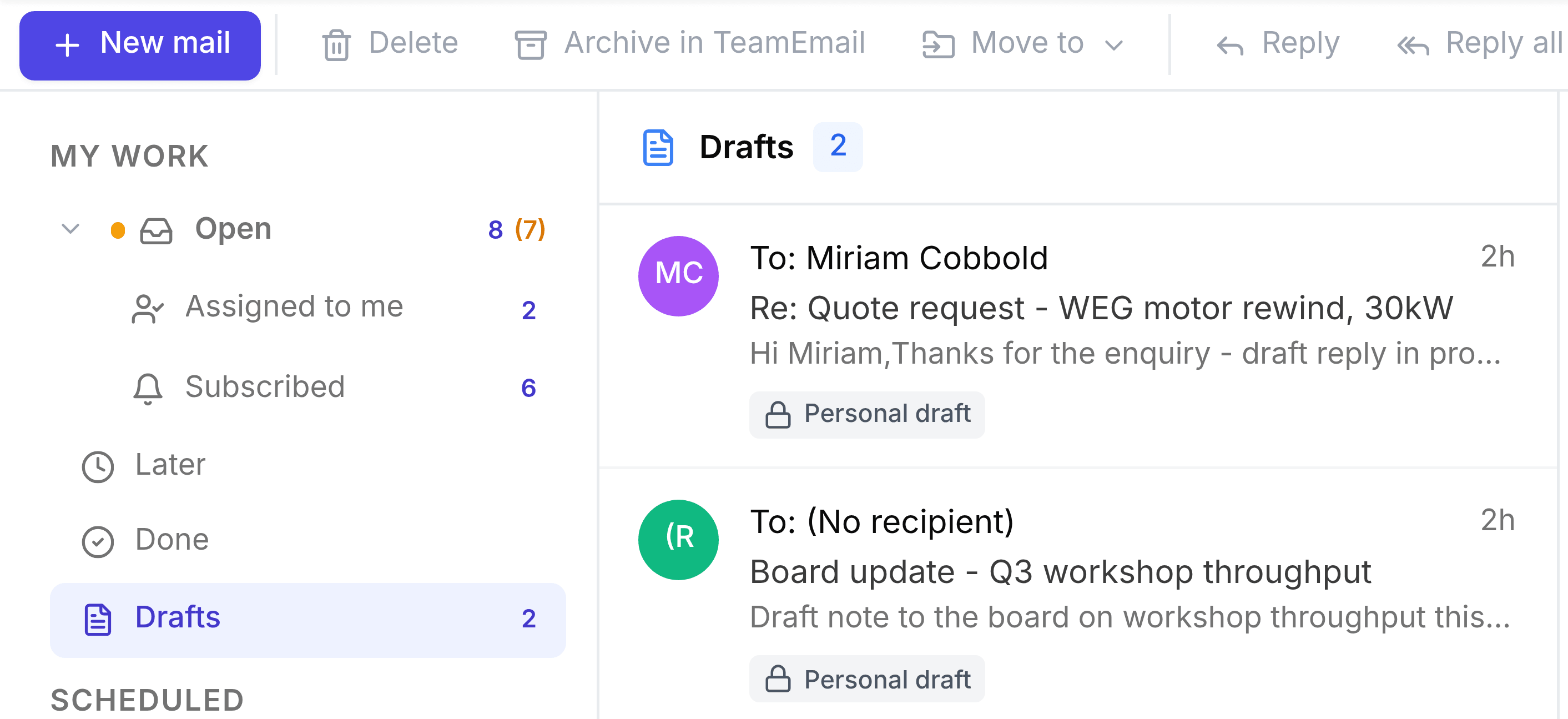
Every email you start and don't send lands in one place, Drafts, under My work, whichever mailbox you were writing from. You never have to check each mailbox for something you were halfway through.
How a draft is saved
You don't need to do anything. A new email or reply saves itself a few seconds after you stop typing, and the time shows beside Discard. To save straight away, select the save button in the composer's toolbar.
Drafts are kept in TeamEmail, not in your Outlook Drafts folder.
Finish a draft
Select Drafts, then select the draft. A new email reopens in the composer. A reply reopens inside its conversation. Carry on writing and send it as usual.
Personal and shared drafts
Each row says Personal draft or Shared draft.
- Personal draft
- Only you can see it. Every draft starts this way.
- Shared draft
- Teammates can open and edit it too. Use it when someone should check a reply before it goes, or finish it for you.
To share a reply, select Share draft in the bar above it. In a shared inbox it's shared with the team straight away. In your own mailbox you choose teammates to invite.
Only one person edits a shared draft at a time. Anyone else sees who's editing, with a Take over button. Taking over from someone who's typing may interrupt them, so TeamEmail asks you to confirm.
Discard a draft
Open it and select Discard. For a reply that has been saved, TeamEmail asks Delete this draft?. Select Delete draft. A new email is discarded straight away, without asking.