
Inboxes
Create a shared inbox for the team, choose which mailbox feeds it, and decide who's a member and what they can do.
Last reviewed
An inbox is how TeamEmail groups mail for people to work on. Settings > Inboxes has two tabs: Individual, for your own mailbox, and Shared, for team inboxes such as Sales or Service. Membership of a shared inbox is what lets someone see its mail.
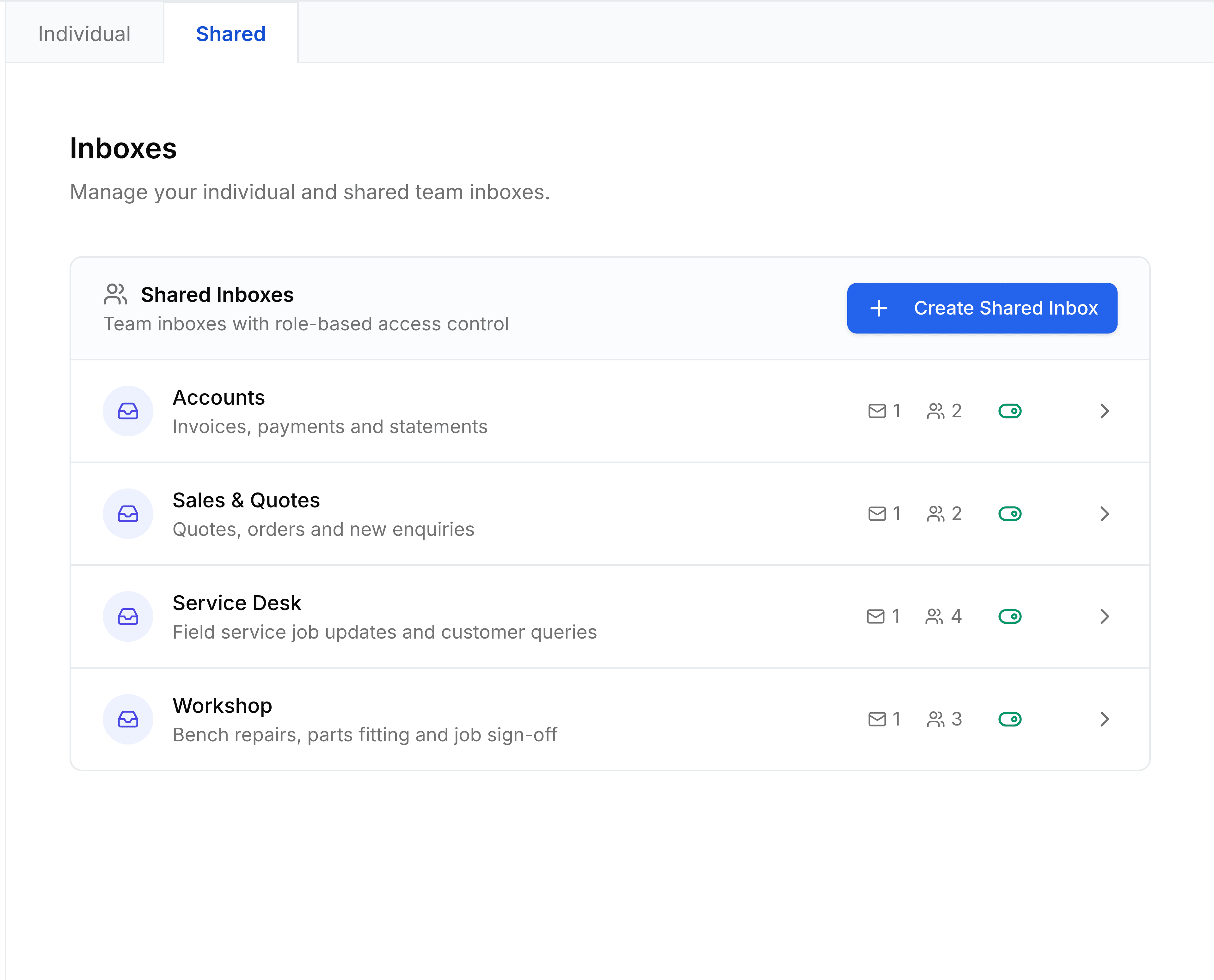
Create a shared inbox
Go to Settings > Inboxes and select the Shared tab.
Select Create Shared Inbox.
Enter a Name people will recognise in the sidebar, such as
Service Desk, and optionally a Description of what it handles. Select Create. A message confirms Shared inbox created.The inbox opens in a panel. Under Channels, select + Add beside the mailbox that should feed it, such as
service@.Under Members, choose a person in Add a member..., pick their role, and select +. Repeat for each member.
Select Save.
A message confirms Inbox updated, and the inbox appears in every member's sidebar under Shared Inboxes. You're added as its Admin automatically.
You're done when the inbox is on the Shared tab with its channel and member counts, and members can see it in their sidebar.
The fields
| Field | What it does |
|---|---|
| NameRequired | What the inbox is called in everyone's sidebar. Each shared inbox needs a different name. |
| Description | A short line on what the inbox is for, such as "Invoices, payments and statements". |
| Channels | The connected mailbox or mailboxes whose mail appears in this inbox. A mailbox can belong to only one inbox at a time. |
| Members | Who can see and work the inbox, each with a role. |
| Ticket IDs | Turn on Enable ticket IDs to give every new conversation a reference such as SRV-001. Set the Prefix and the number of Digits, check the Preview, and select Save Ticket Settings. |
Member roles
- Admin
- Can change the inbox's settings, members and channels, as well as work its conversations. They must also be a TeamEmail administrator to save changes.
- Member
- Can read, reply, assign, add notes and change statuses. The right role for most people.
- Observer
- Can read the inbox but can't send from it. Suits a manager who wants visibility.
Adding someone to an inbox also gives them access to TeamEmail, if they didn't have it already.
Change or remove an inbox
Only the inbox's Admins see the controls below; anyone else gets a read-only view with a Close button. Select an inbox to open its panel, change what you need, and select Save. The toggle on each row turns an inbox off without deleting it: a disabled inbox disappears from the sidebar. To delete one, select the bin on its row or Delete in its panel, and confirm. Its members are removed and its mailboxes are unassigned, but the conversations stay.
Your individual inbox
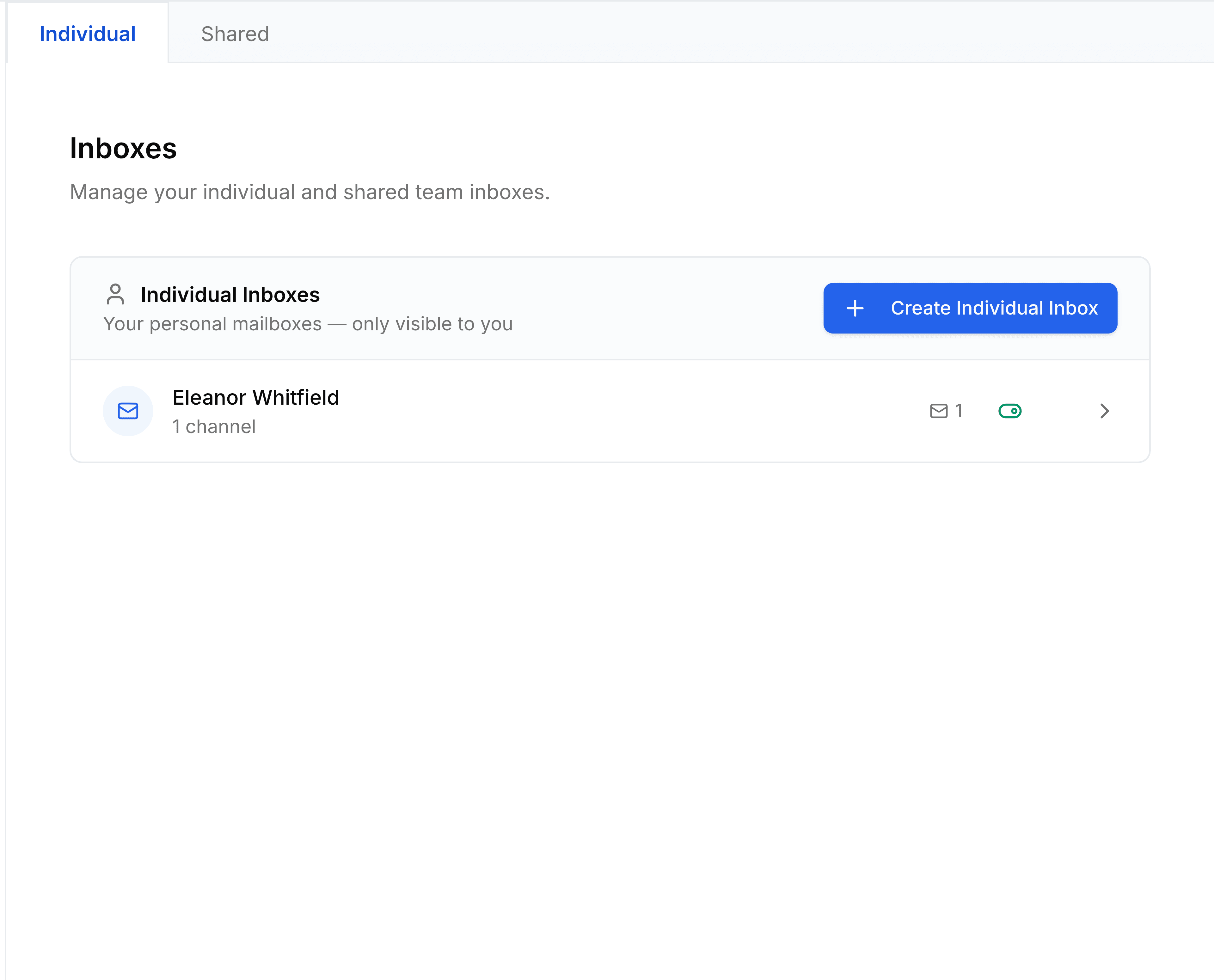
The Individual tab lists inboxes only you can see. Select Create Individual Inbox to make one, then add your own connected mailbox to it under Channels, the same way as above.