
Answer a customer email from start to finish
Take one customer request through a shared inbox, from arriving to closed: assign it, brief a colleague, reply, and close it out.
Last reviewed
This guide follows one real request through TeamEmail, from the moment it lands in a shared inbox to the moment it's closed. By the end you'll have assigned it, briefed a colleague without the customer seeing, replied from the team's address, and closed it so it leaves everyone's working list.
- Find itThe Unassigned tab of the shared inbox.
- Own itAssign it, so nobody else picks it up.
- BriefAn internal note the customer never sees.
- ReplyFrom the shared address, not your own.
- CloseMark it Done once nothing else is needed.
The example
Yvonne Braithwaite, facilities manager at a food producer, emails service@: "The chiller in the packing hall is running warm since Friday." She needs an engineer. You're on the service desk, and Nadia Osei books engineer visits.
1. Find the email and take it
A new email lands in the shared inbox with nobody's name on it, and waits on the Unassigned tab until someone takes it.
In the sidebar, under Shared inboxes, select Service Desk to expand it, then select Inbox. It opens on Unassigned.
Select Yvonne's email, Callout request - chiller not holding temperature, to open it on the right. The sender's name and address are at the top of the message, which is how you tell which customer it is.
Select Assign at the top right, then select the person who should own it. Choose yourself if you'll see it through. Here it's Nadia, because she'll make the call.
The button now shows the owner's name, and the conversation moves to the Assigned tab. Assign a conversation covers this step in full.
2. Brief a colleague with an internal note
A note is a message to your team inside the conversation. It never reaches the customer, so it's the place for "can you take this?" rather than a separate chat or a forwarded email.
Select the box at the bottom of the conversation that reads Note to the team… @ to mention, and write your note.
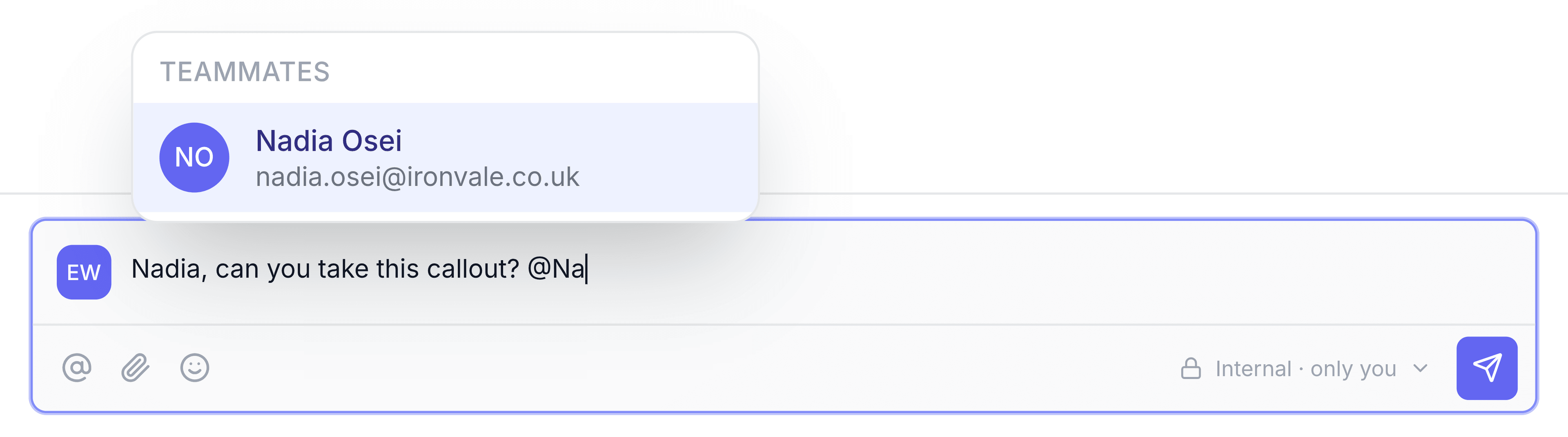
To make sure a teammate sees it, enter
@followed by the start of their name, then select them from the Teammates list. Their name is added to the note.Select Enter to post it, or Shift+Enter for a new line.
The note appears in the conversation's timeline, marked as internal. Anyone you mention gets a notification, and the conversation shows up in their lists, so they don't have to be watching the inbox.
The label in the corner of the box, such as Internal · you and Nadia, shows who follows the conversation. Everyone in the inbox can read notes, but only the people listed there are following it.
3. Reply to the customer
Select Reply in the bar at the top of the customer's message. The reply opens below it, inside the conversation.
Leave From as the shared inbox, here Service Desk ([email protected]). That way the reply comes from the team's address, the customer's answer comes back to the team, and the whole exchange stays in one place.
Check To. It's already filled in with the customer's address.
Write your reply in the box. If you've set up a signature, it's added underneath automatically.
| Field | What it does |
|---|---|
| FromRequired | The address the reply is sent from. It starts as the inbox the email arrived in. Change it only if the reply should genuinely come from somewhere else. |
| ToRequired | Who receives the reply. Filled in with the person you're replying to. Select an address to change it, or its cross to remove it. |
| CC and BCC | Select either to add a row for copying someone in. BCC recipients are hidden from everyone else. |
| MessageRequired | What the customer reads. Enter `/` to insert one of your saved templates. |
While you write, the reply saves itself as a draft. The bar above it reads Personal draft - Only visible to you, so you can leave and come back to it.
4. Send it, and choose what happens next
The arrow beside Send email sends your reply and moves the conversation on in one step, so you don't have to come back and change it afterwards.
Select the arrow beside Send email. Under Send as, select Open if your team still has work to do, Waiting if the next move is the customer's, or Resolved if this reply finishes the job. Selecting one sends the reply straight away.
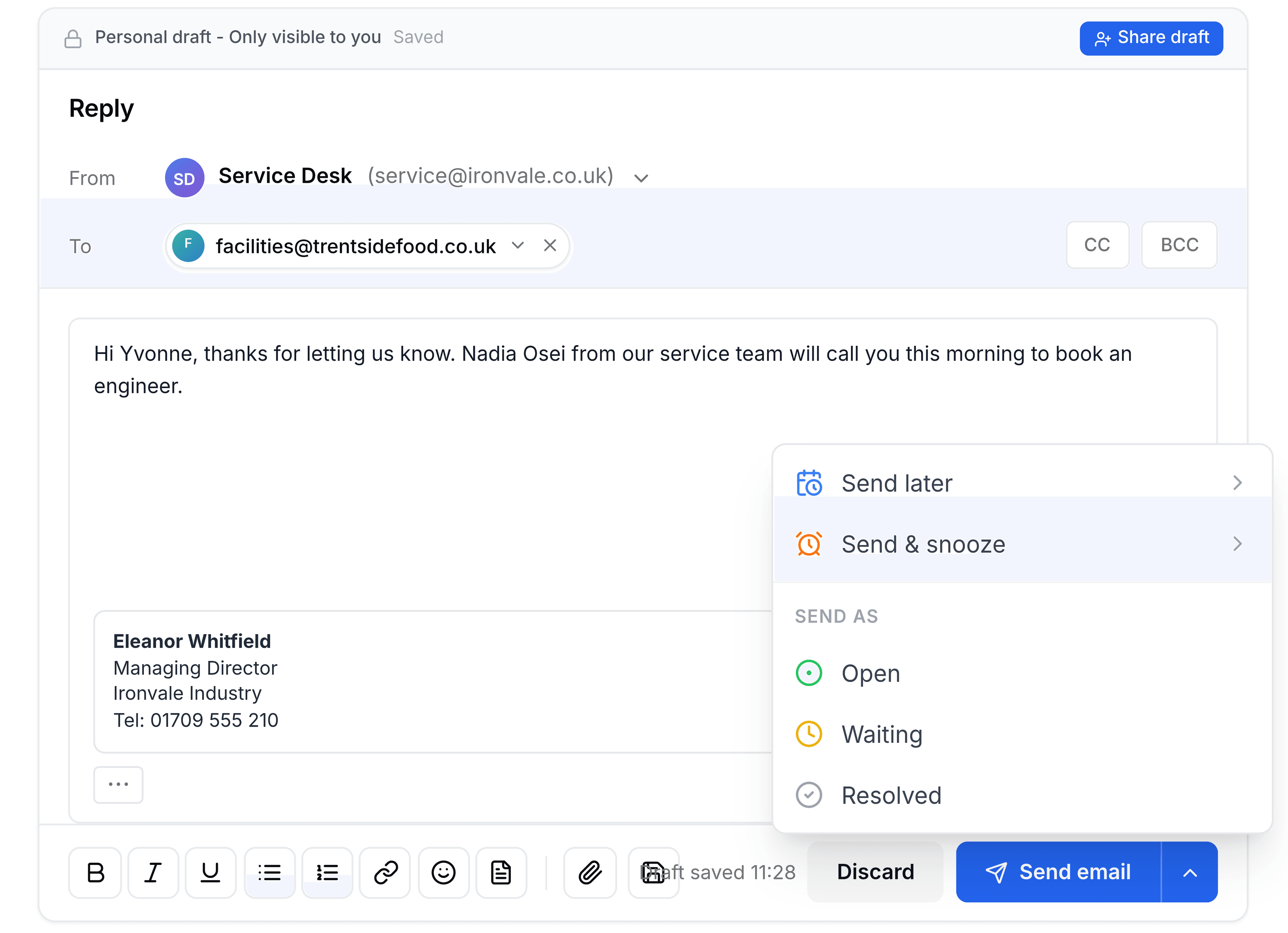
If the status shouldn't change, select Send email instead.
A message appears at the bottom right: Your message is being sent, counting down with an Undo button (unless you've turned Undo Send off). Select Undo within that time to get the reply back unsent, with your text and attachments. Check To, CC and From again before you resend. When the countdown ends, the reply goes out from the shared address. It then appears in the conversation and in the inbox's Sent Items, and any Send as choice is applied.
In this example, choose Send as > Open: Nadia still has to book the visit.
5. Close it out
Once the engineer's visit is booked and nothing else is needed, close the conversation so it stops asking for attention.
At the top right of the conversation, select the status button. It reads Open.
Select Done.
A banner appears at the top of the conversation: This conversation is resolved. The conversation also moves to the Resolved tab of the inbox. Nothing is deleted: the conversation and its history stay exactly where they were.
The banner also offers Archive in Service Desk, which is optional. Archiving tidies the conversation away from the Resolved tab too, and TeamEmail brings it back to Open if the customer ever writes again. Your Outlook mailbox isn't affected either way.
You're done when the conversation shows Done and sits on the Resolved tab, with your reply in its timeline.
Mistakes worth avoiding
Replying from your own address. If From shows your personal mailbox, the customer answers you rather than the team, and nobody else sees the rest of the exchange. Check From before you send.
Putting internal detail in the reply. Prices you haven't agreed, a colleague's availability, "can you take this?": all of that belongs in a note. A note can't be sent to the customer by mistake. A reply can.
Leaving it Open after the job is finished. An open conversation keeps counting in everyone's lists. Mark it Done, or choose Resolved when you send the last reply.
If something doesn't look right
Your reply isn't in the conversation straight after you select Send email. It's still inside the undo countdown. It appears once the countdown finishes.
The reply was sent but shows it failed. Look in Outbox in the sidebar, where failed sends wait with the reason and a Retry button.
You're asked to share the conversation when you mention someone. That person isn't a member of this inbox. Select Share to give them this one conversation, or Cancel. Cancelling doesn't post your note, and your text stays in the box.