
Assign a conversation
Give a conversation in a shared inbox to one teammate, so everyone can see who owns it.
Last reviewed
In this guide you'll give a customer's conversation to the teammate who should answer it, then check that it has landed with them. Until a conversation is assigned, everyone in the inbox can see it and nobody is responsible for it. Assigning fixes that: one name goes on it, and the rest of the team can leave it alone.
- Unassigned tabNew mail waits here with nobody's name on it.
- Open itCheck it's the right request.
- AssignChoose the teammate.
- Assigned tabIt moves across, and your teammate gets a notification.
Assign it
In the sidebar, under Shared inboxes, select the inbox (for example Service Desk) to expand it, then select Inbox. It opens on the Unassigned tab, which lists everything nobody has taken yet.
Select the conversation. It opens in the reading pane on the right.
Check the sender, the subject and the message before you go on, so you're handing over the request you mean to.
At the top right of the conversation, select Assign. A list of teammates opens with you at the top, marked (you).
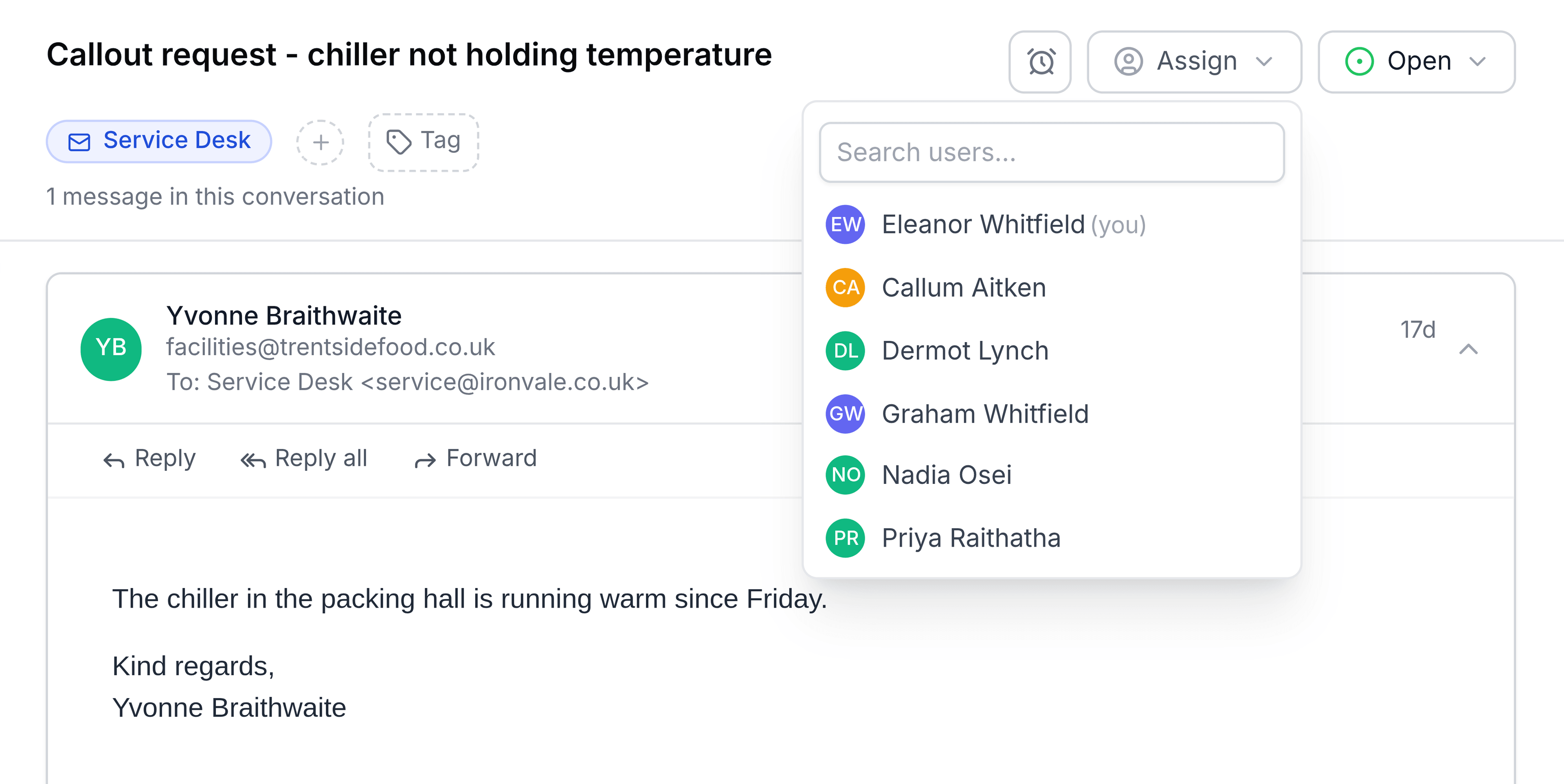
Select the teammate. For a long list, enter part of their name in Search users first.
How you know it worked
TeamEmail doesn't show a confirmation message. Look at the conversation instead:
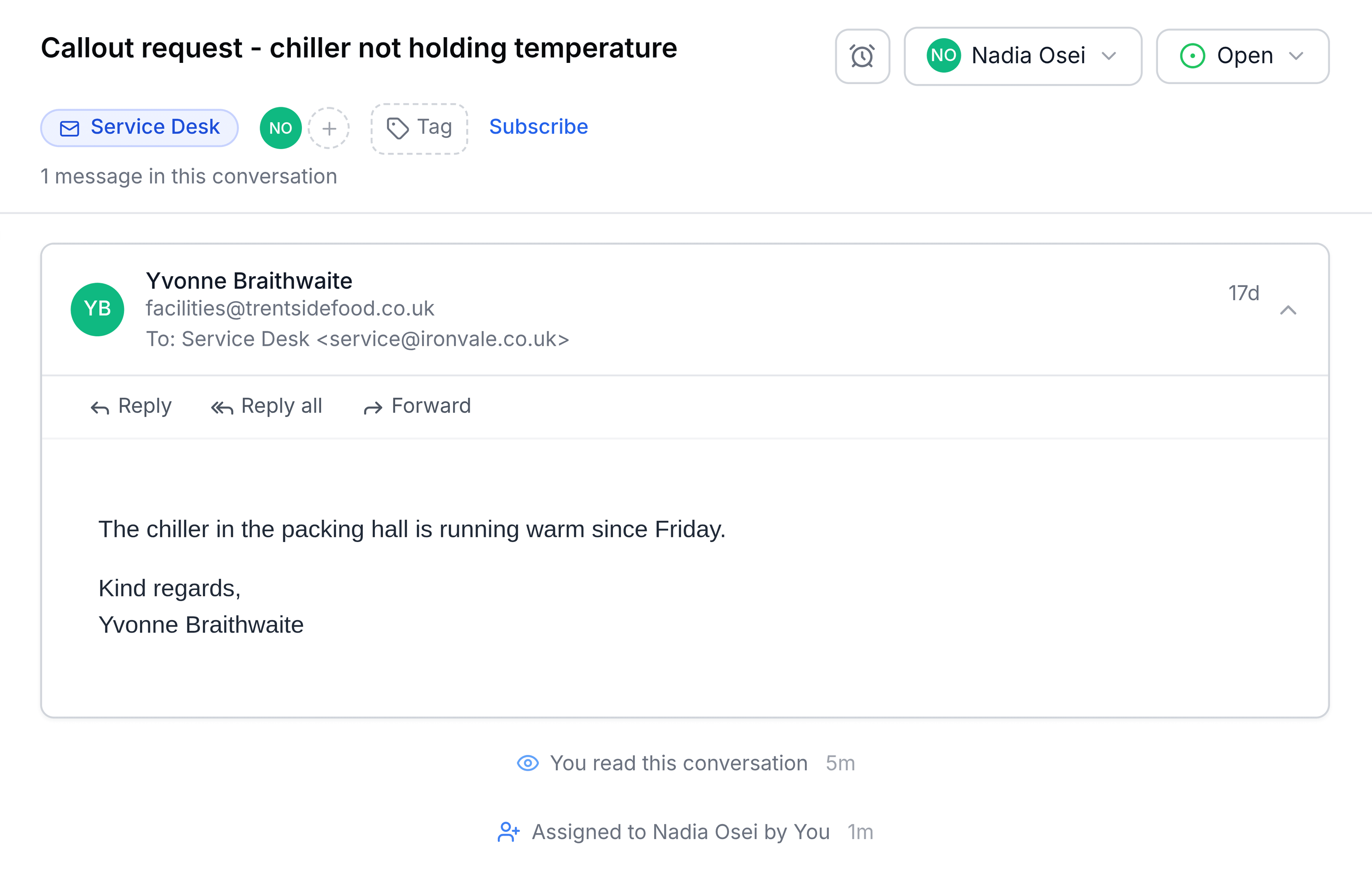
- The Assign button now shows your teammate's name.
- Their avatar appears beside the inbox badge, because they now follow the conversation.
- A line at the bottom of the conversation reads Assigned to name by You.
- The conversation leaves the Unassigned tab and is counted under Assigned. The two counts change by one as it moves.
You're done when the button shows your teammate's name and the conversation is listed on the Assigned tab.
What your teammate sees
The conversation appears in their Assigned to me list, under My work, and they get a notification saying you assigned it to them. They don't need to go looking in the shared inbox.
Assigning also brings a parked conversation back to life. If it was waiting, snoozed or done, assigning it reopens it, so the new owner sees it as work to do.
Change or remove the owner
Select the button showing the current owner's name to open the same list.
- Reassign it by selecting someone else. The previous owner stops following it, so it leaves their My work.
- Take it yourself by selecting your own name, at the top of the list.
- Put it back in the queue by selecting Unassign, at the top of the list. It returns to the Unassigned tab for anyone to pick up.
If something doesn't look right
The conversation vanished from the list after you assigned it. It moved to the Assigned tab, which is where it belongs now. It stays open in the reading pane until you select something else.
The person you want isn't in the list. The list only includes people who use TeamEmail. Ask a TeamEmail administrator to give them access, or to add them to the inbox.
You're asked to share the conversation. You picked someone who isn't a member of this inbox. Select Share to give them this one conversation, including its earlier and future messages, and nothing else in the inbox. Select Cancel to leave the owner as it was.