
Navigating TeamEmail
The sidebar's two halves, the search bar and the app switcher.
Last reviewed
TeamEmail opens on one screen and stays there. Everything you reach is chosen from the left sidebar, which is read top to bottom in two halves: views first, then the mailboxes those views are drawn from.
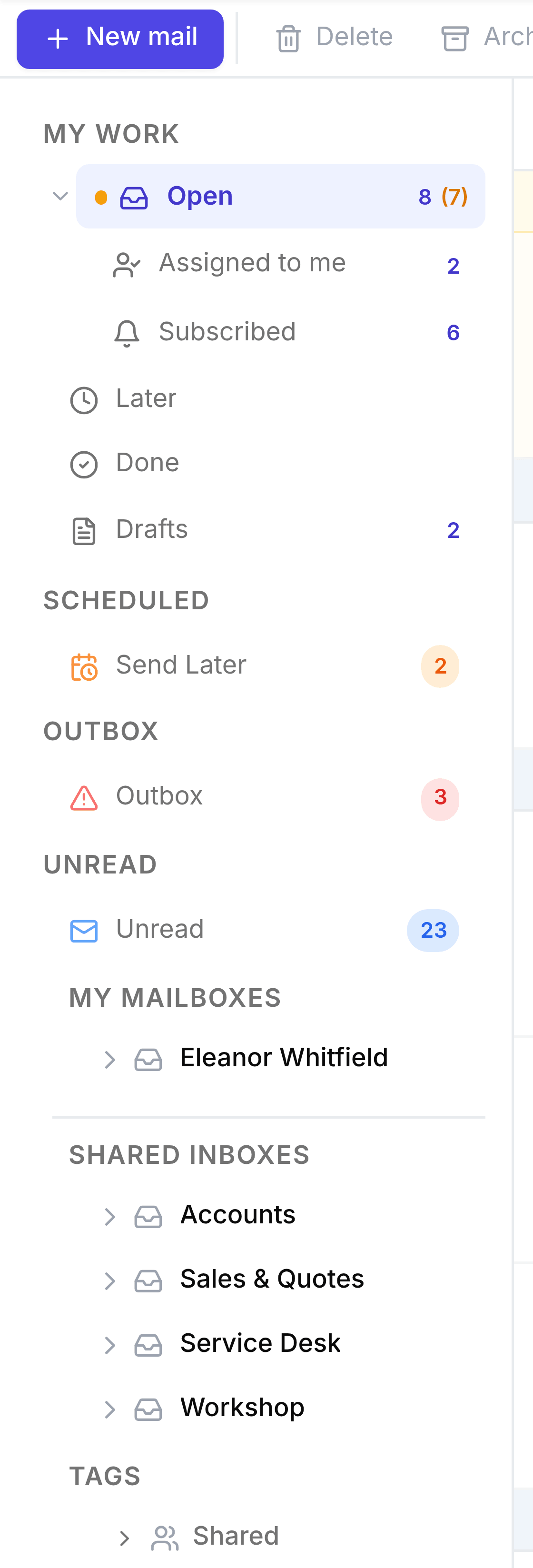
Select a row in the upper half to ask a question across your mailboxes: what's assigned to me, what's unread, what's waiting to send.
Select a mailbox in the lower half to expand it, then select a folder inside it, such as Inbox, to see where mail physically sits.
Select a conversation in the list to read it. The reading pane opens to the right of the list.
Around the edges
- New mail
- The button at the top left. Starts an email from scratch.
- The toolbar
- Along the top of the page: Delete, Archive in TeamEmail, Move to, Reply, Reply all, Forward, Flag, Junk and Print. It acts on the open conversation, or on the ones you've ticked. Reply, Reply all, Forward and Print need a single open conversation.
- Search
- The bar at the top of the screen. Finds conversations across every inbox you can see.
- The bell
- Your notifications: assignments, mentions, snoozes that have ended, and sends that failed.
- The gear
- TeamEmail Settings.
- The app switcher
- The grid at the top left. Moves you to another SorviAI app.