
Teammates
Invite people to TeamEmail and choose who administers it.
Last reviewed
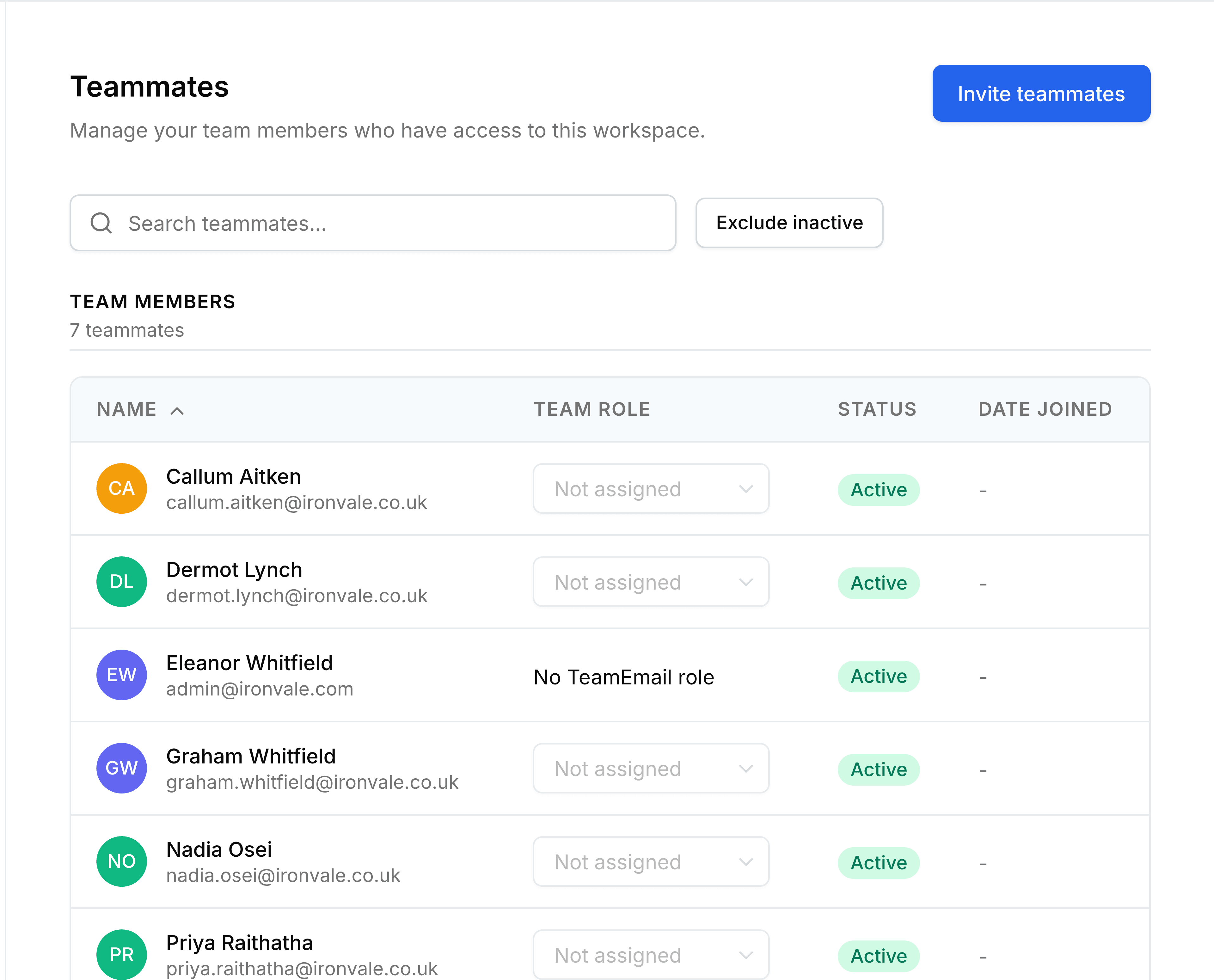
Settings > Teammates lists everyone in your workspace, with the role each person holds in TeamEmail. Use it to invite someone new, or to make someone an administrator.
Invite someone
Go to Settings > Teammates and select Invite teammates.
Enter their Email, and optionally their first and last name.
Choose their Role, then select Send Invite.
A message confirms Invitation sent. They get an email with a link to join. Once they've accepted, add them to the shared inboxes they'll work in: see Inboxes.
Change someone's role
In the Team role column, choose a role for the person. A message confirms the change. You can't change your own role.
- TeamEmail Admin
- Everything a user can do, plus creating shared inboxes (and managing those they're an Admin of), teammates, and the team's shared templates, tags and signatures.
- TeamEmail User
- Works conversations in the inboxes they're a member of, and manages their own mailbox, private templates, tags and signatures, and personal settings.
A role here only affects TeamEmail. It doesn't change what the same person can do in any other SorviAI app.
Things worth knowing
- Being an administrator doesn't show you every inbox. You still need to be a member of a shared inbox to see its mail.
- Someone with no TeamEmail role can still get in if they're a member of a shared inbox. Membership is what matters for day-to-day work.
- Search and filter with the box above the list, or select Exclude inactive to hide people who have left.