Welcome to Nest
What SorviAI Nest covers, and the groundwork worth doing before your team moves its files in.

Nest is the file workspace in the SorviAI suite: your own folders, the folders your team works in together, and everything people have shared with you. These guides take one screen at a time, so you can read the page you're standing on and stop there.
What Nest covers
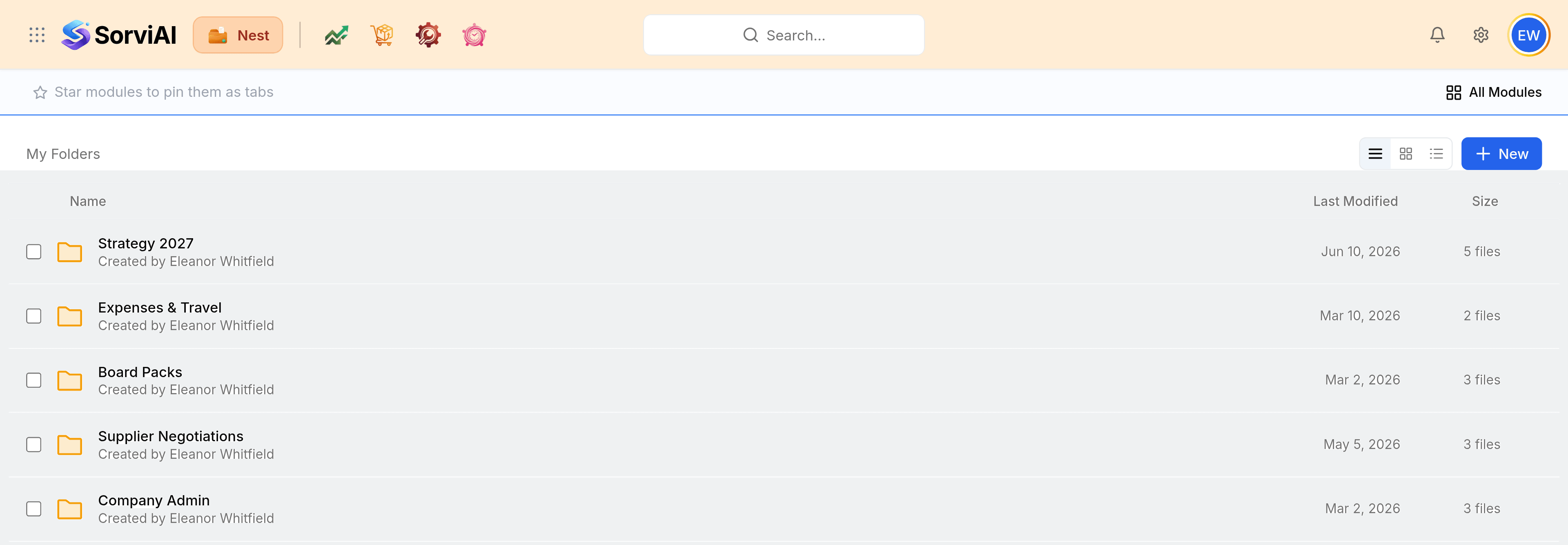
- My FoldersYour own files and folders. Nobody else sees them unless you share them.
- Team FoldersFolders a team owns together, with members and a role for each of them.
- Shared with MeFiles and folders other people have given you access to, in one list.
- Recent FilesWhat you opened last, so you can pick up where you left off.
- FavoritesThe files and folders you starred, one select away.
- LabelsYour own coloured tags, grouping files across every folder they sit in.
- TrashWhat was deleted, kept for a while so it can be restored.
- SearchEvery file and folder you can reach, narrowed by type and date.
Putting your files in
A file in Nest always lives in exactly one folder, and that folder is either yours or a team's. Start in My Folders: create a folder, upload into it, and drag files between folders as the shape of the work becomes clear. Anything the whole team needs belongs in a team folder instead, where membership decides who sees it.
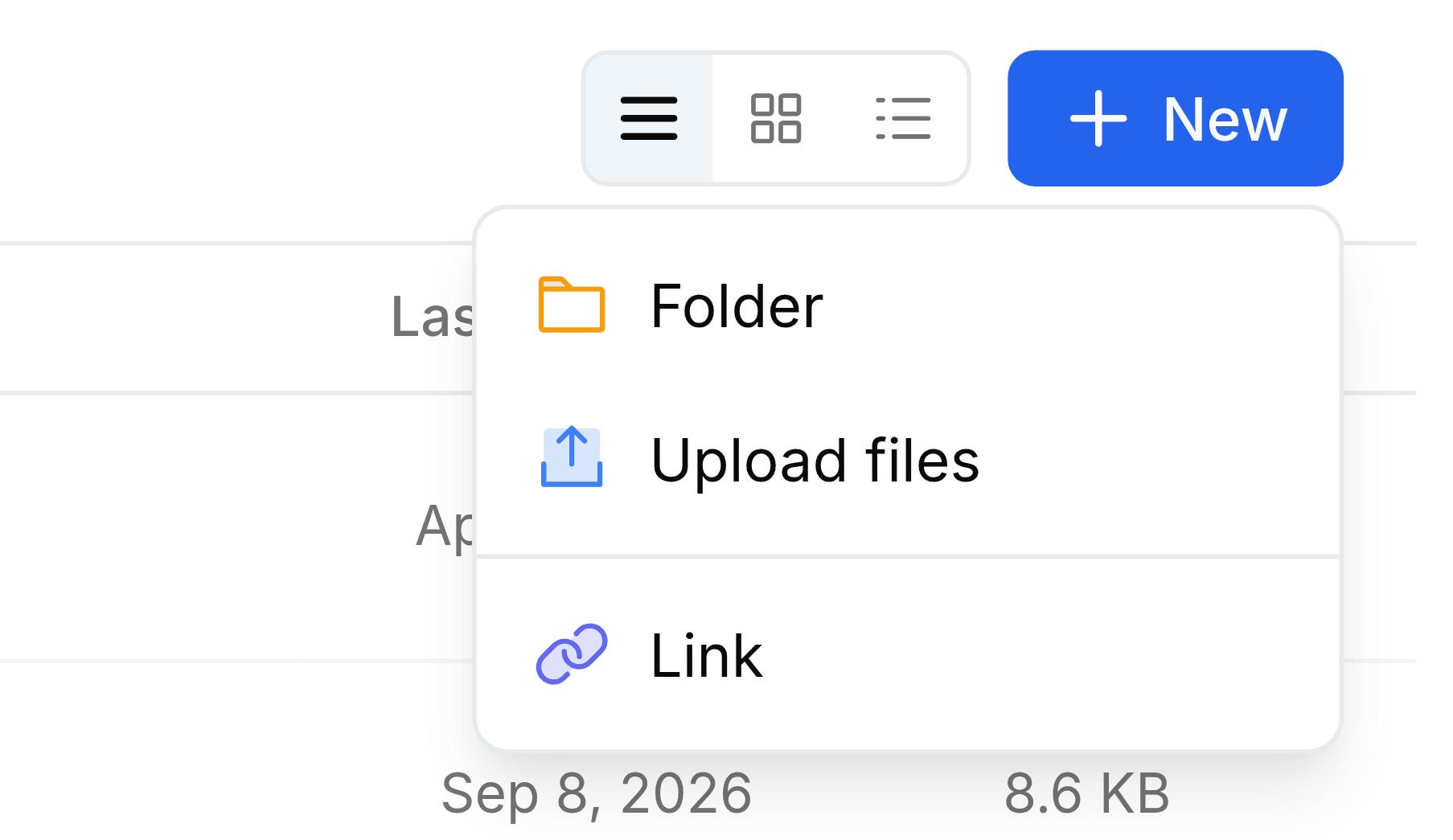
Uploading takes one select, or none at all: drop files from your computer straight onto the folder you have open. Upload files covers the panel that appears and the limits an upload has to meet.
Start here
- Navigating NestThe header, the tabs, the folder toolbar and the three ways a list can be laid out.
- How Nest worksThe two kinds of folder, the views laid over them, and what happens to a file over its life.
Groundwork worth doing early
- Team foldersOne per team or project, so shared work has a home that is not somebody's personal folder.
- Members and rolesWho belongs in each team folder, and whether they view, edit or organise it.
- LabelsA few tags of your own, so files that belong together are found together, whatever folder they sit in.
- Storage settingsThe largest file Nest accepts, and which file types it accepts at all.